1.2 General, Contact, Social Information, and Photos
After creating an account, professionals will need to populate the basic information. The first two steps are to input basic business and contact information:

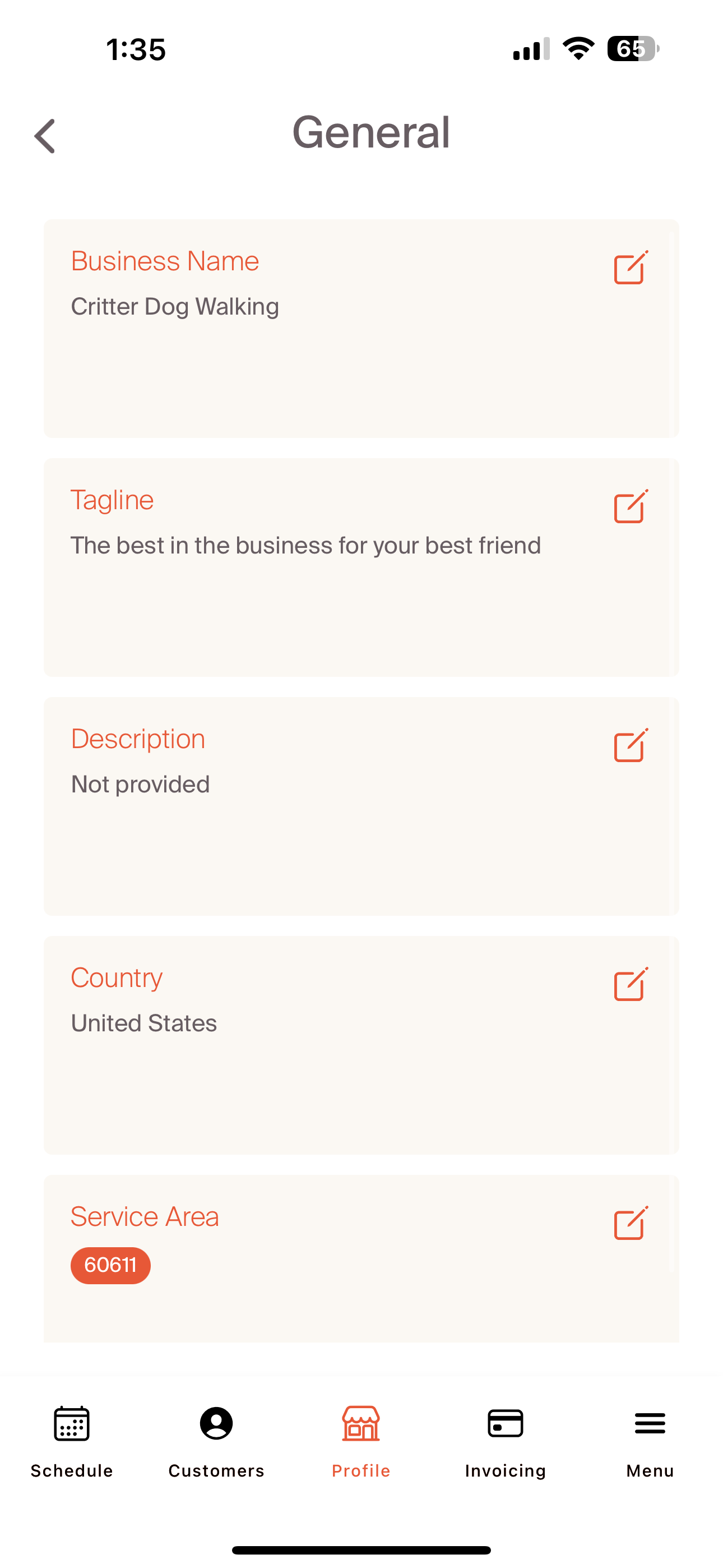
Add General Business Information
- Input Business Name: This is the name of your organization. Your customers will see this name
- Tagline: A short, distinct call-out to understand the services you provide. For example: "the best dog walking in the business for your best friend"
- Description: An optional field to provide additional context to your customers
- Country: The country you provide services
- Service Area: An optional field to provide zip code(s) that you provide services to
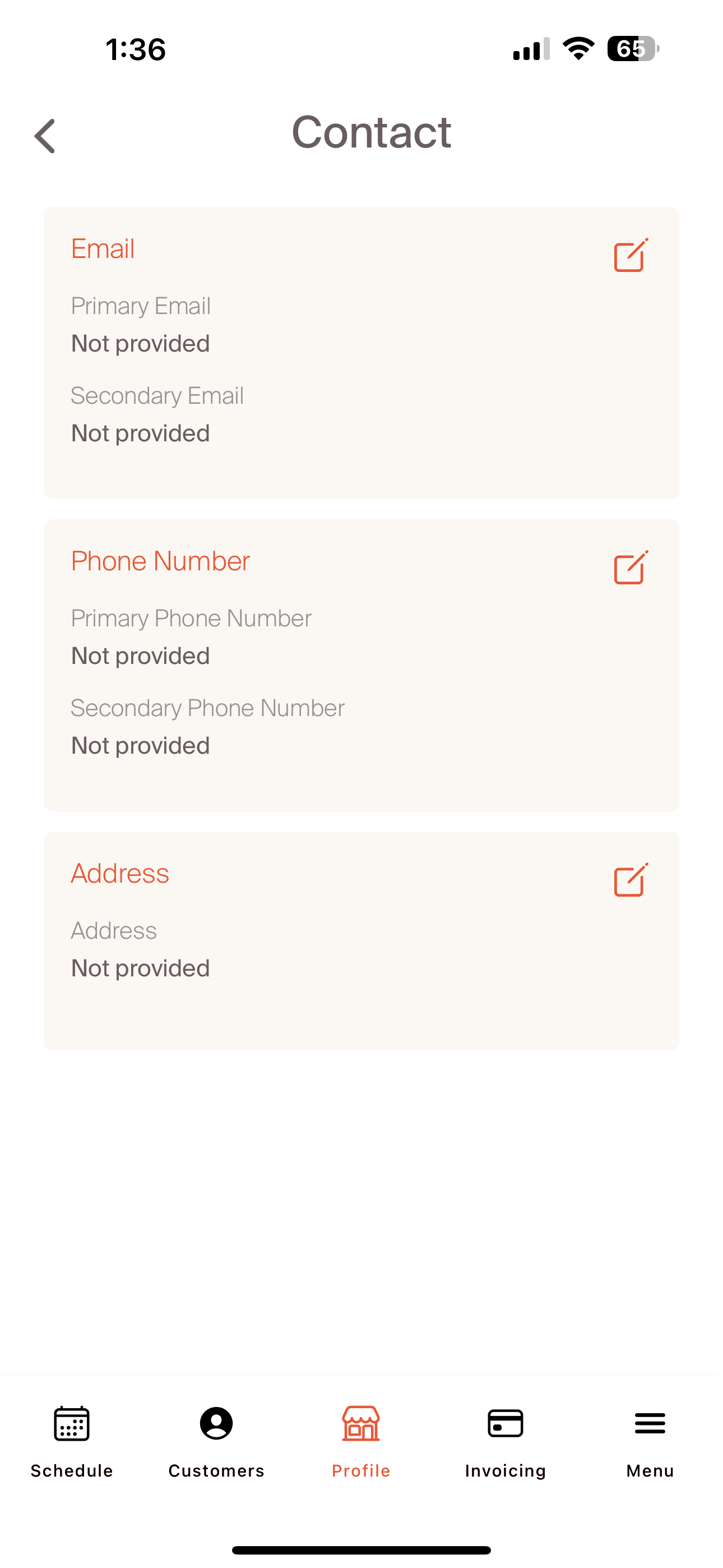
Provide Contact Information
- Primary Email: Email address for customers to reach out to professionals
- Secondary Email: Any additional email address for customers to use
- Primary Phone Number: Primary phone number for customers to call or text
- Secondary Phone Number: An additional phone number for customers to call or text
- Address: A physical location (store front, boarding location) for providing services
After basic contact information is included, the Critter platforms allows for professionals to add two additional avenues to customize the professional profile. 'Links' allows for professionals to include social websites and other online landing pages. Photo gallery provides professionals with the opportunity to include a thumbnail or banner to allow for an organization to brand the experience in alignment with their overall brand presence.
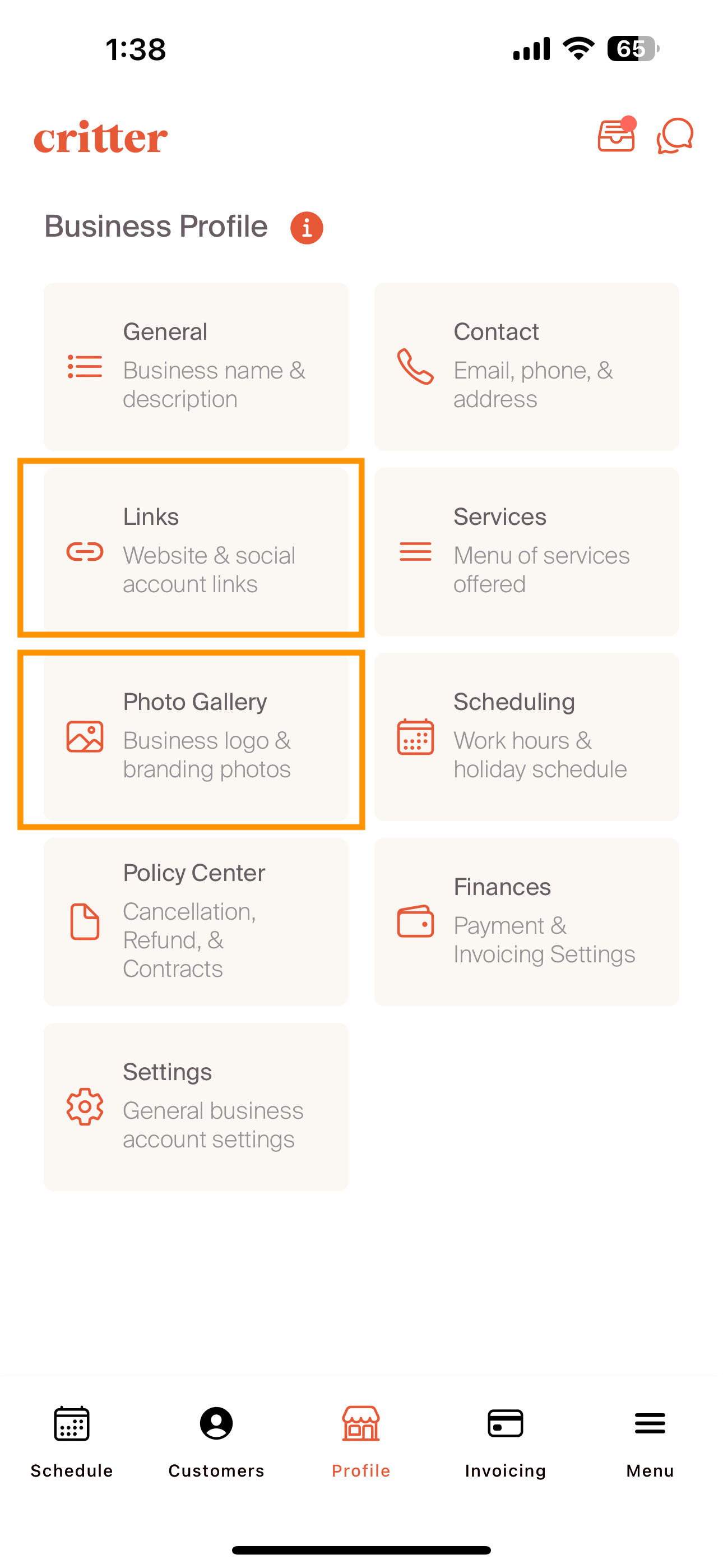
Links: By selecting the "edit" button in the upper right hand corner, professionals can update the following fields:
- Website: Business website for additional information on services
- Instagram: Link to Instagram Account
- Facebook: Link to Facebook Account
- X (Twitter): Link to "X" or "Twitter" Account
- LinkedIn: Link to LinkedIn Account
- Google Business Page: Link to Google Business Account
- Youtube: Link to Youtube Account
- Yelp: Link to Yelp Account
- TikTok: Link to TikTok Account
Links are all optional fields.
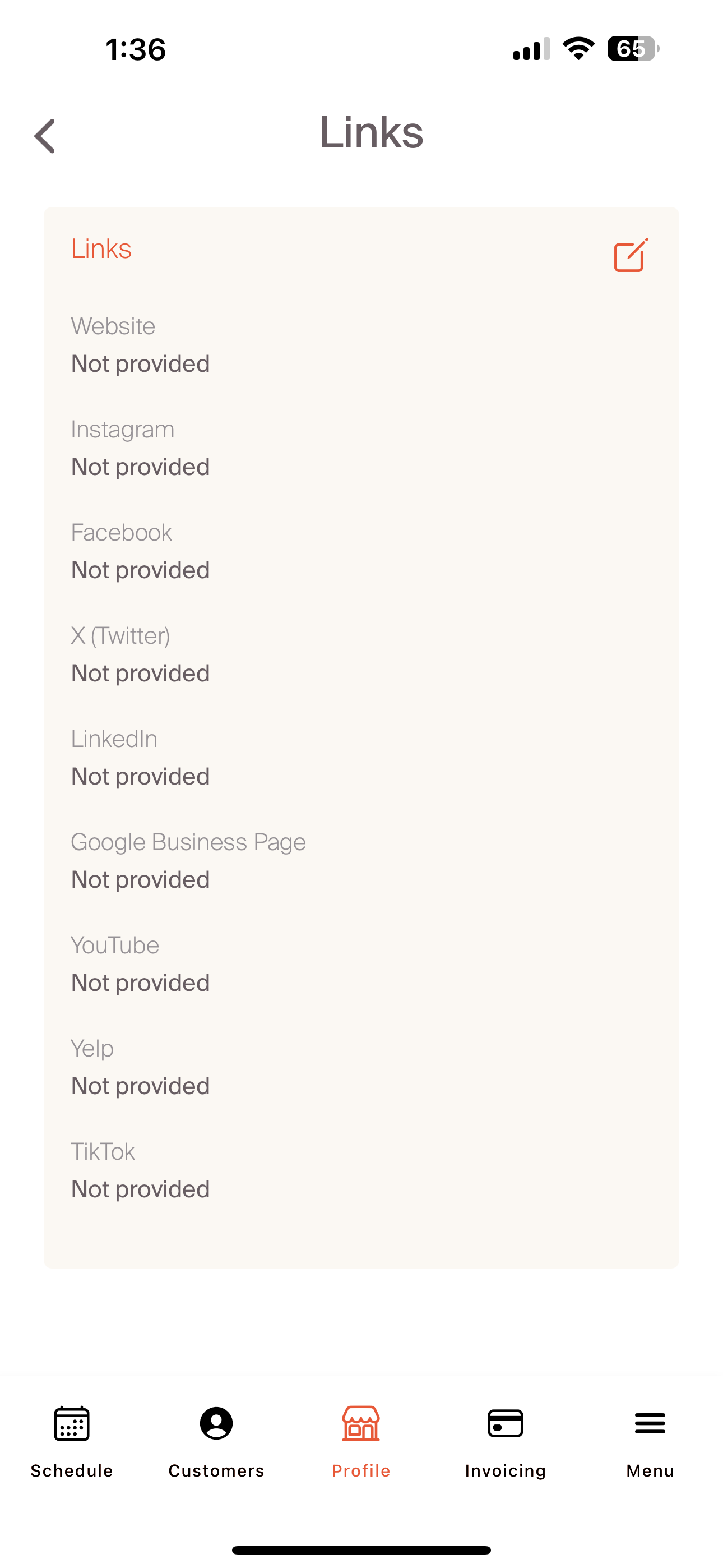
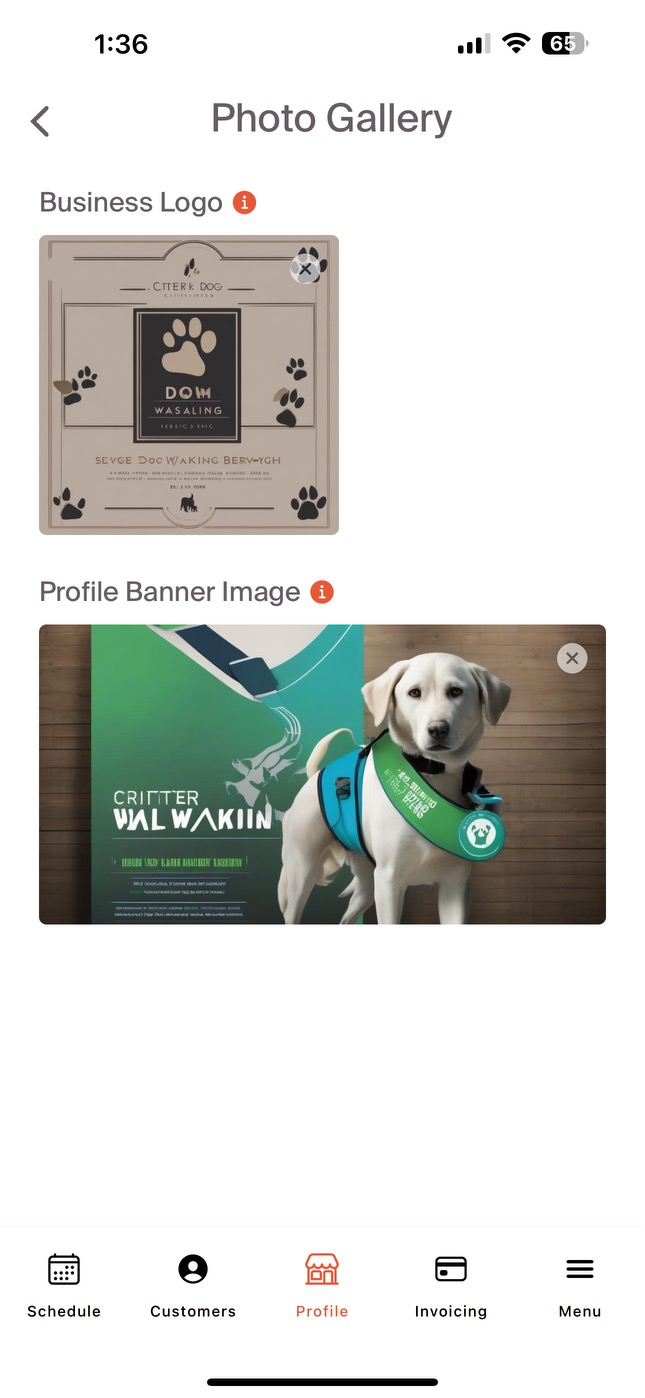
Photo Gallery: Business Logo and Profile Banner Image are two different photos to allow for professionals to add a branded flare to their account. These photos will be visible to customers, so including photos is a big way to set your profile apart.
-
Select the photo below "business logo"
- If there is a business logo already uploaded, select the existing photo
- Choose the photo you'd like to use as your business logo
- Once selected, the photo will appear below the business logo tag.
- Work through the same process for the profile banner image.
After completing the basic information set-up, navigate to Setting-Up Service Offerings to continue to build out your professional profile.