3.1 Overview of the Scheduling Tab
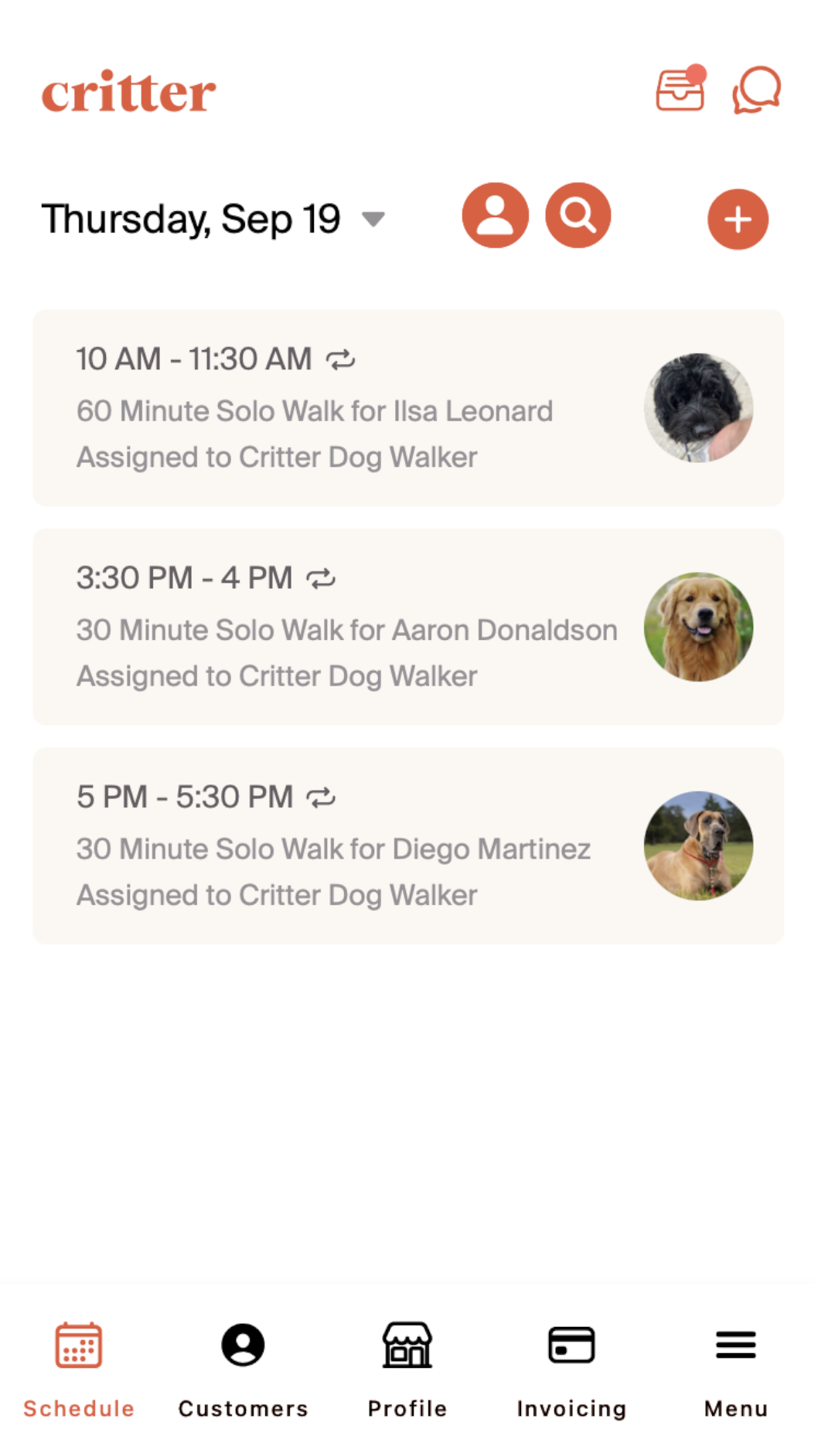
The scheduling tab is the landing page when you select the schedule tab. This screen allows us to see our schedule for the day, the customers that we have bookings for, and their pets. It also will show which employee this booking is assigned to. If you only have one employee, this will default to the professional account owner.
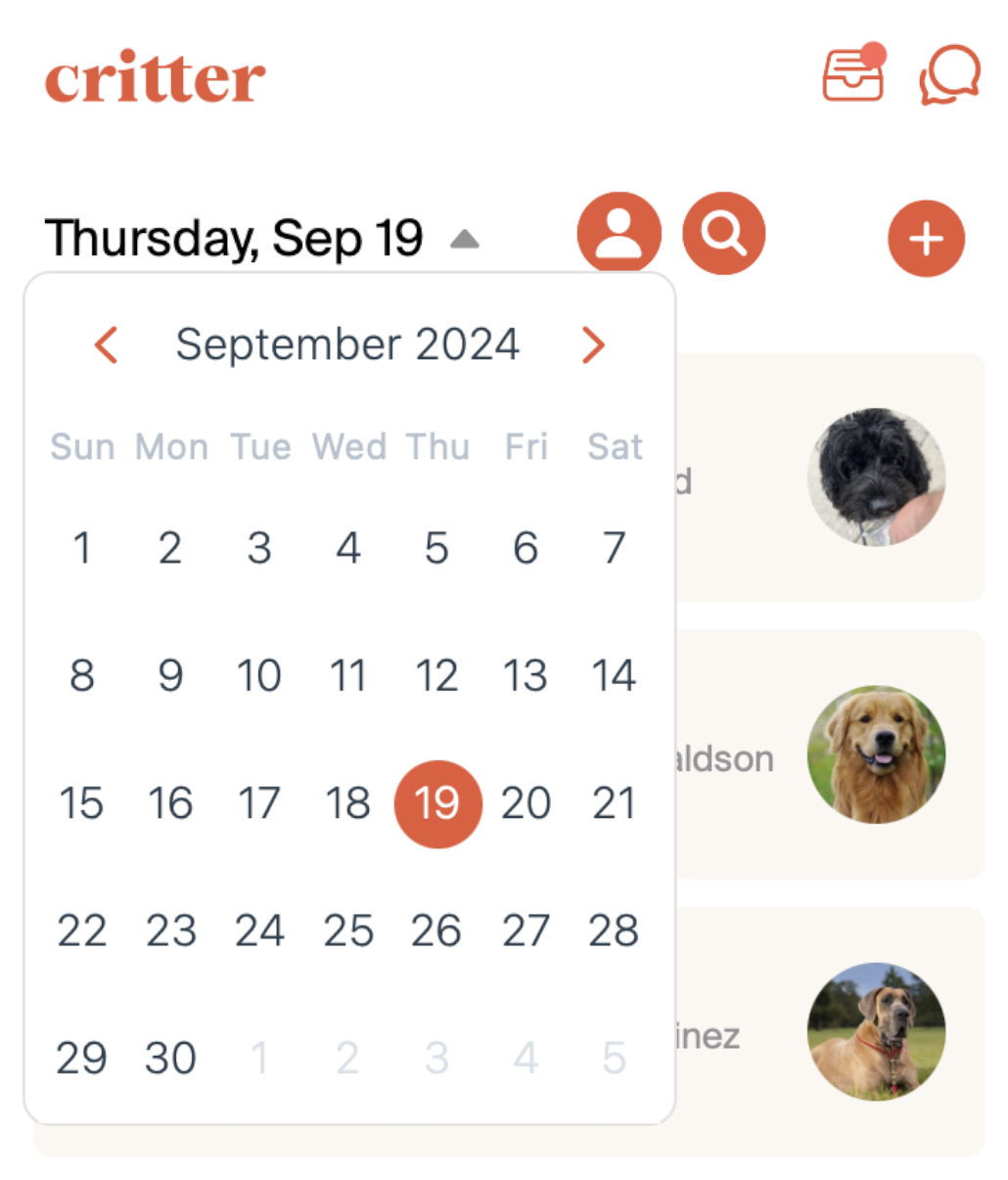
Selecting the arrow next to the date will allow us to navigate to dates in the past or the future. This allows us to review old bookings to generate service reports, or schedule and review bookings for upcoming days.
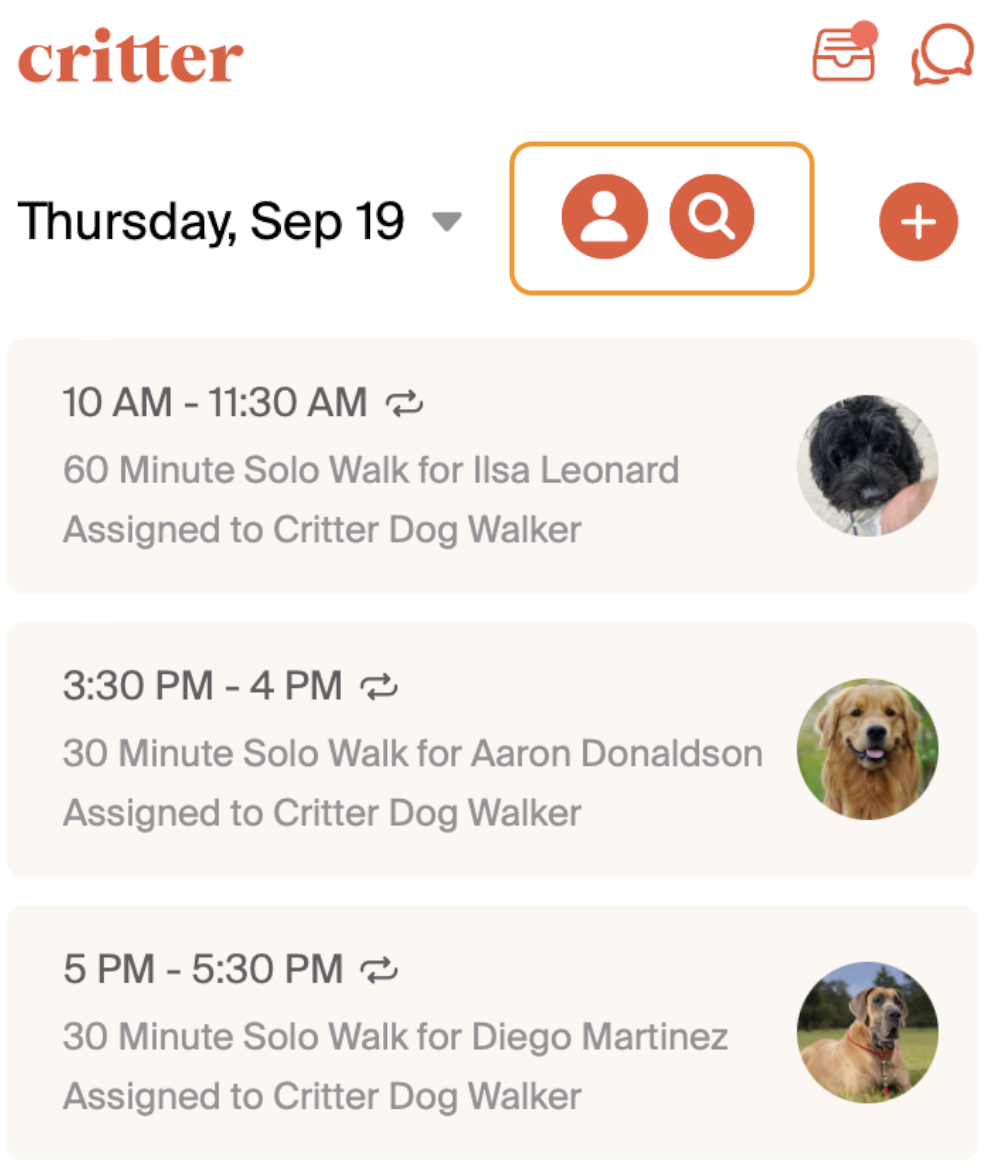
We also have the ability to review bookings for a specific employee by selecting the "human" icon on the top of the screen. Selecting the "search" icon will allow us to search for bookings for one specific customer.
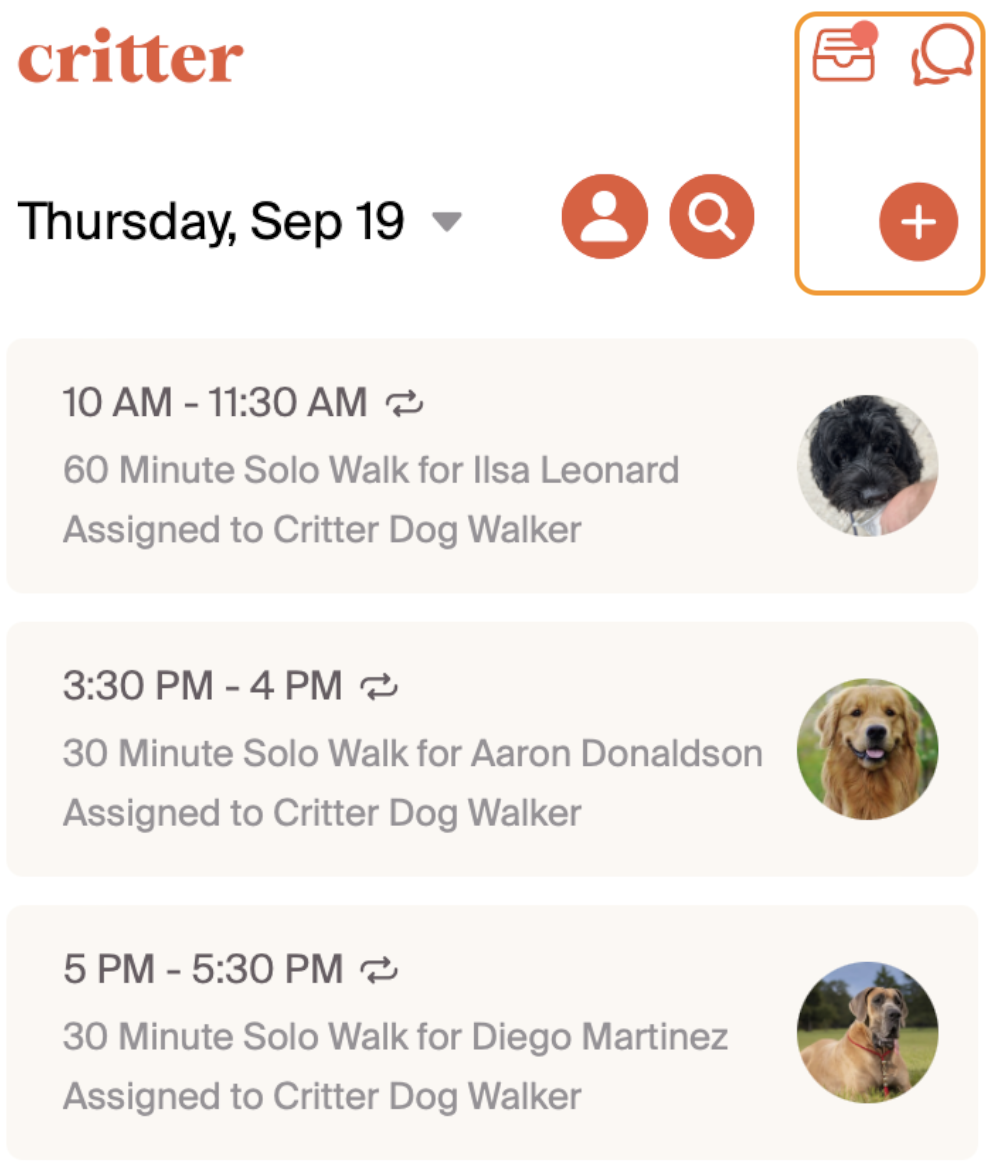
The "+" sign allows for professionals to add a booking. In the upper right, the "inbox" icon is where professionals can go to review requests to book, and the "chat" icon allows for direct messaging to individual customers. These will be reviewed in greater detail in the scheduling specific walkthroughs.
Now that we understanding the schedule landing page, let's move to creating a new booking.