4.2 Link Bookings to New Invoices
The next step in the process is to add a memo and chose to link bookings. Memo will appear on the invoice, and is useful for customers to understand exactly what the invoice is for. Linked bookings are very helpful as it will pull in the information for the services booked into the invoice process. This will include default pricing.
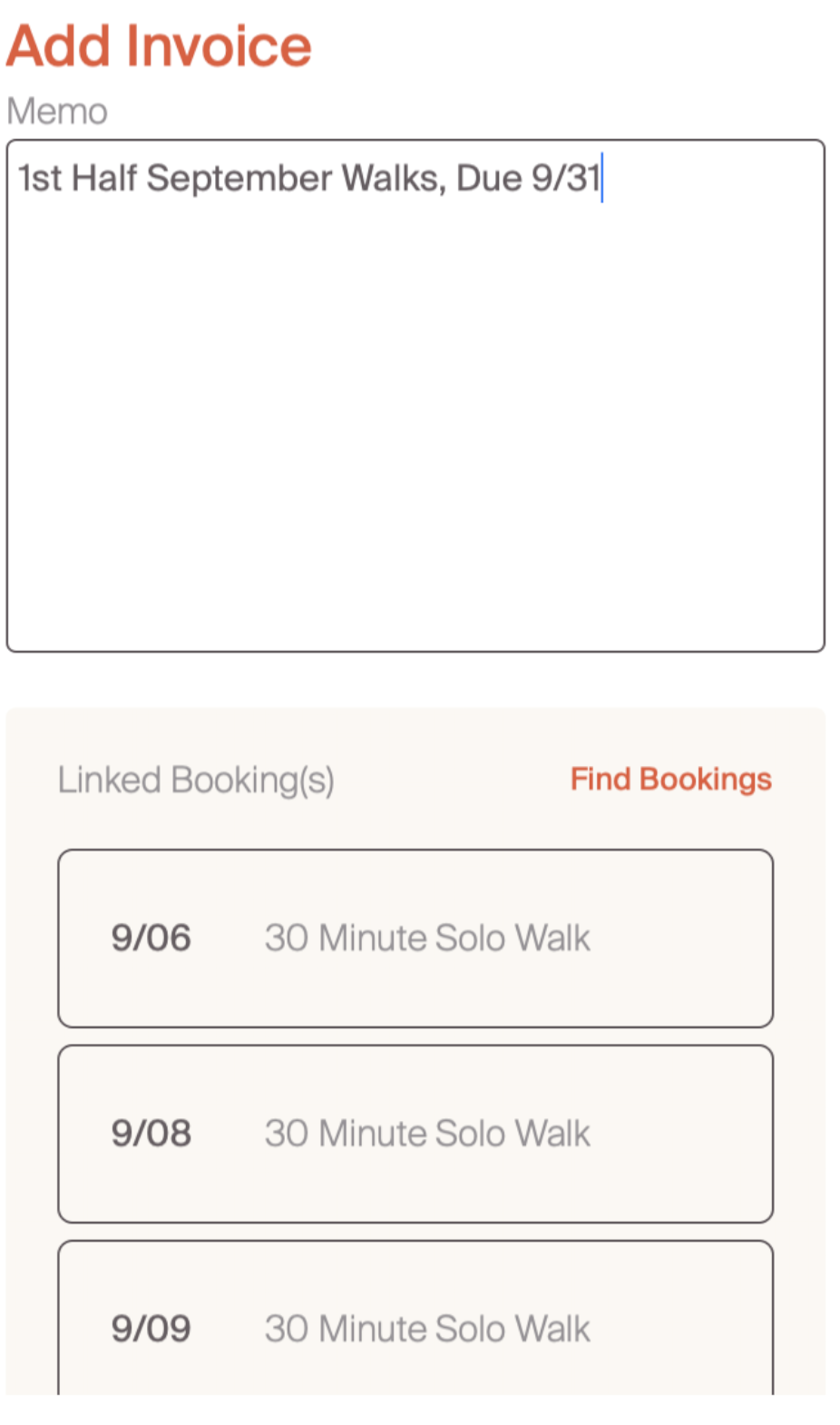
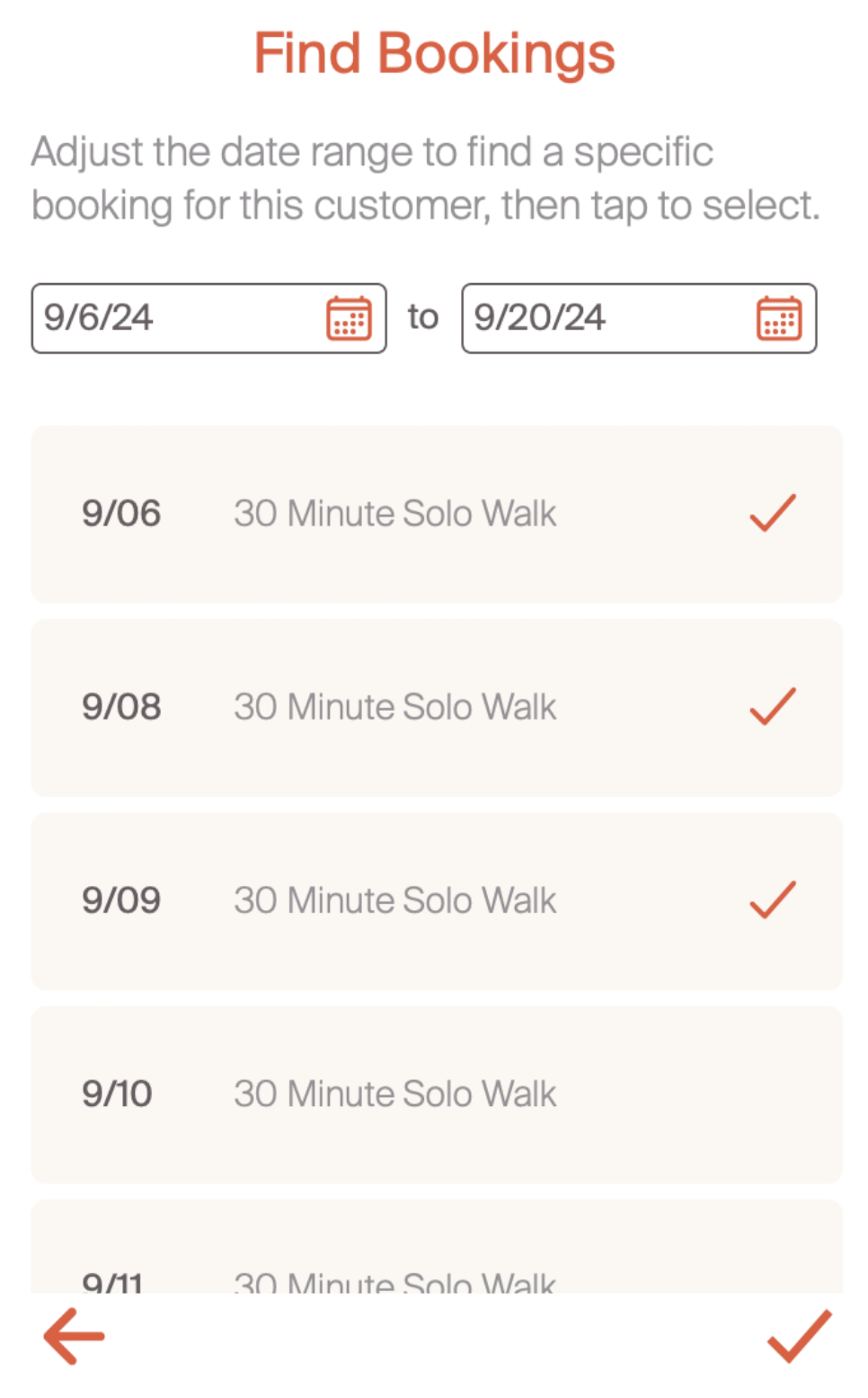
To include linked bookings, select the "find bookings" in the upper right hand corner. Check the relevant bookings, and select the "check" mark in the bottom right hand corner. You can filter the time period that you would like to see services for. If you invoice for services in the future, you can search for bookings once they are created.
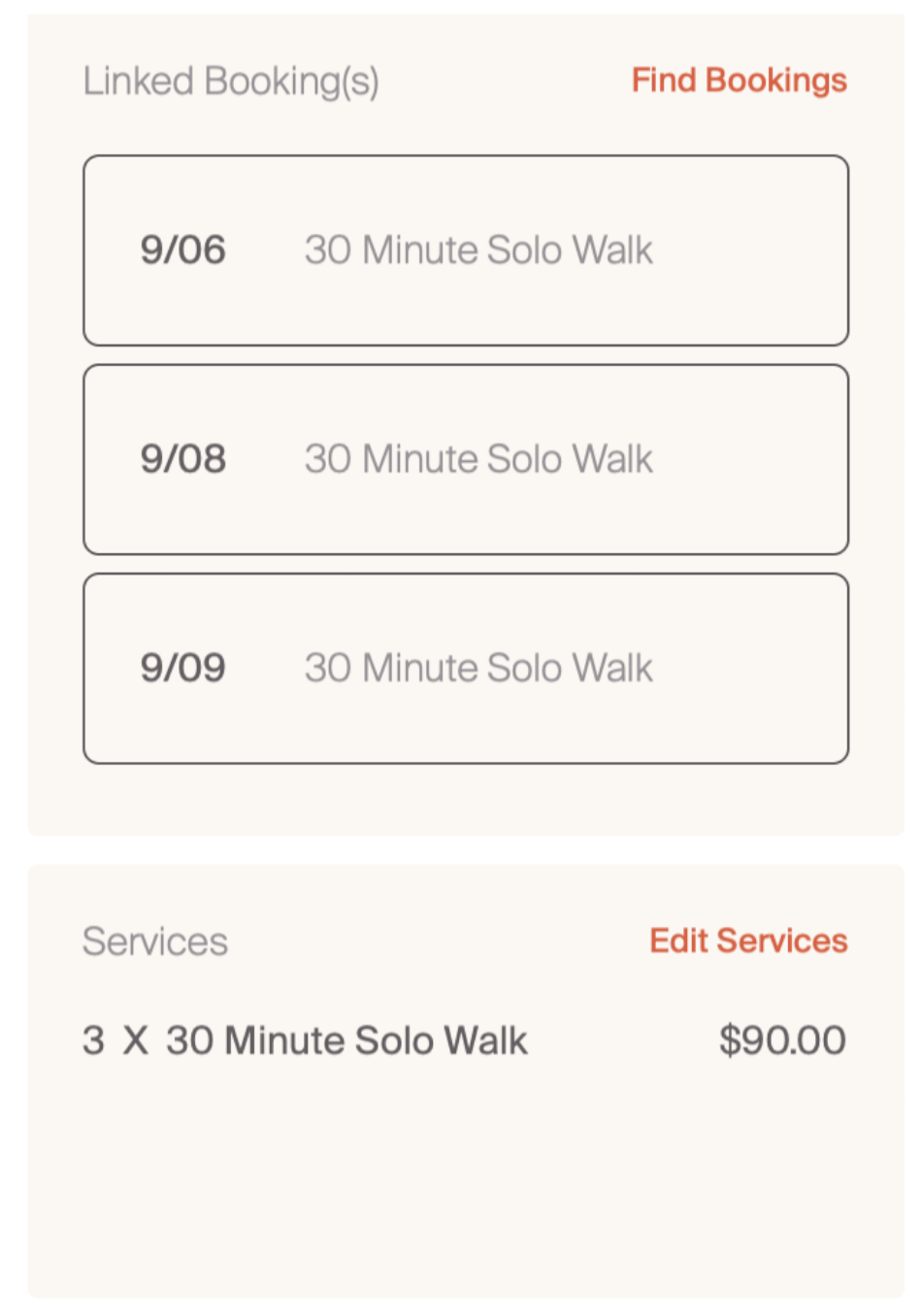
When bookings are added, they will pre-populate in the services section with the corresponding price. This is the default price that is assigned to the service when you create the service in your professional profile configuration
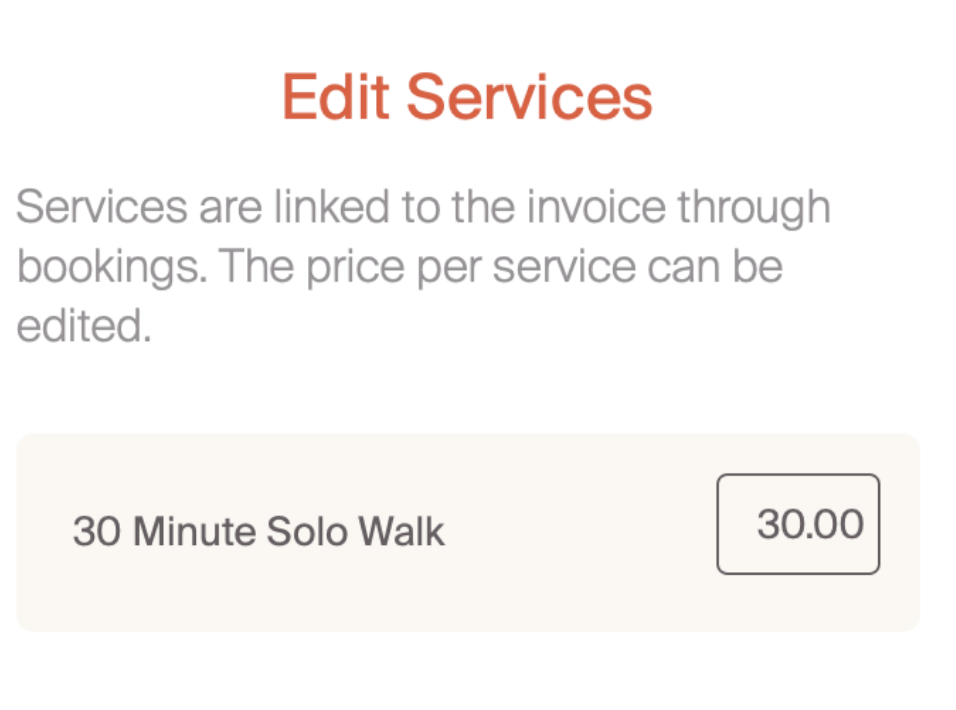
Professionals do have the ability to update the price of the service. Selecting "edit services" in the upper right hand corner of the services section will allow for you to update the base price of the service. This will apply to all instance of that service in the booking.
Now that we understand the basics, let's explore adding additional charges.