3.4 Creating a Booking from a Customer Request
The second way to create a booking is to accept, reject, or adjust customer's "requests to book". The request to book feature allows for a customer to request a service during a specific time slot, and gives the professional the ability to generate a booking based on this input. All of these requests can be found in the "envelope" in the upper right hand corner.
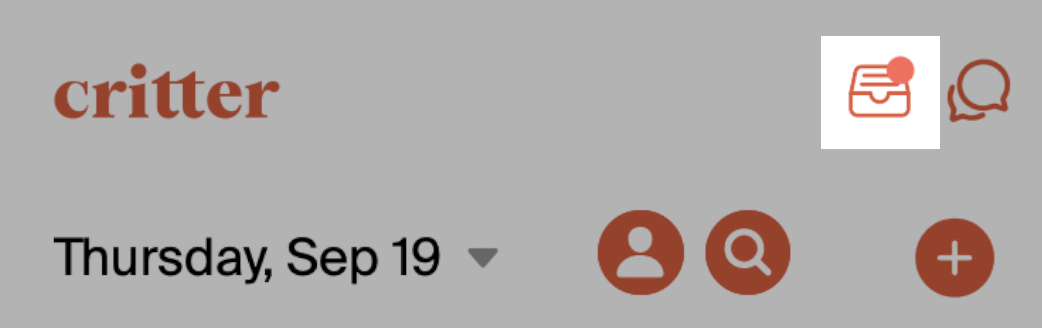
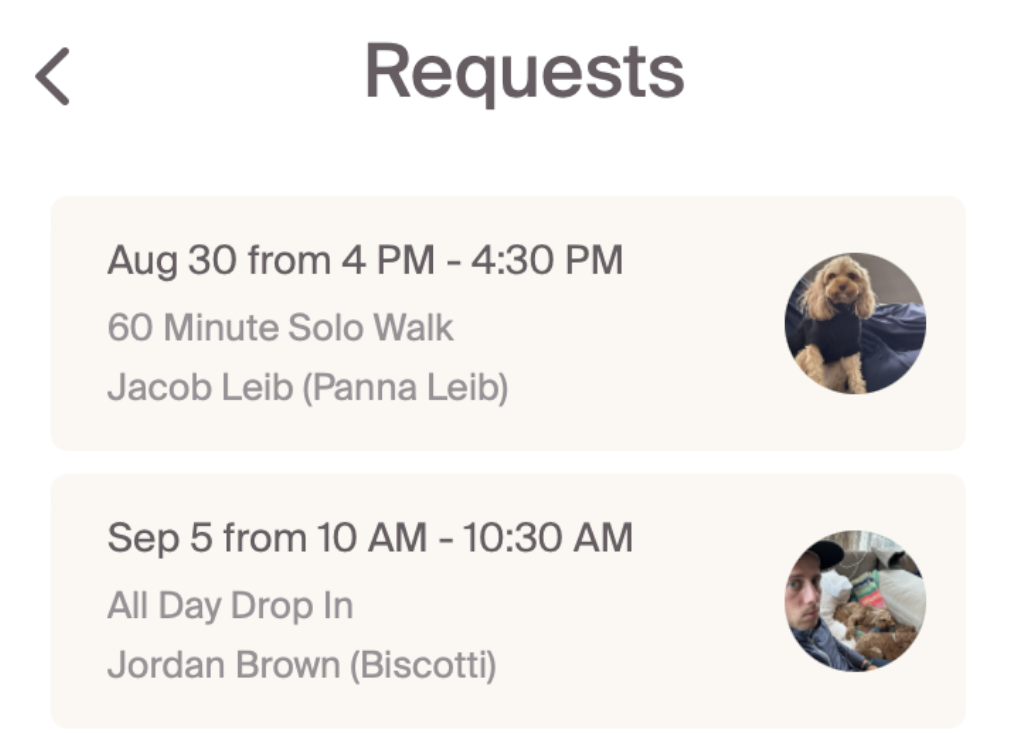
When the envelope is selected, a full list of the requests will appear. The requests tab will show the date, time, service, customer, and pet. Each request can then be clicked into for additional review.
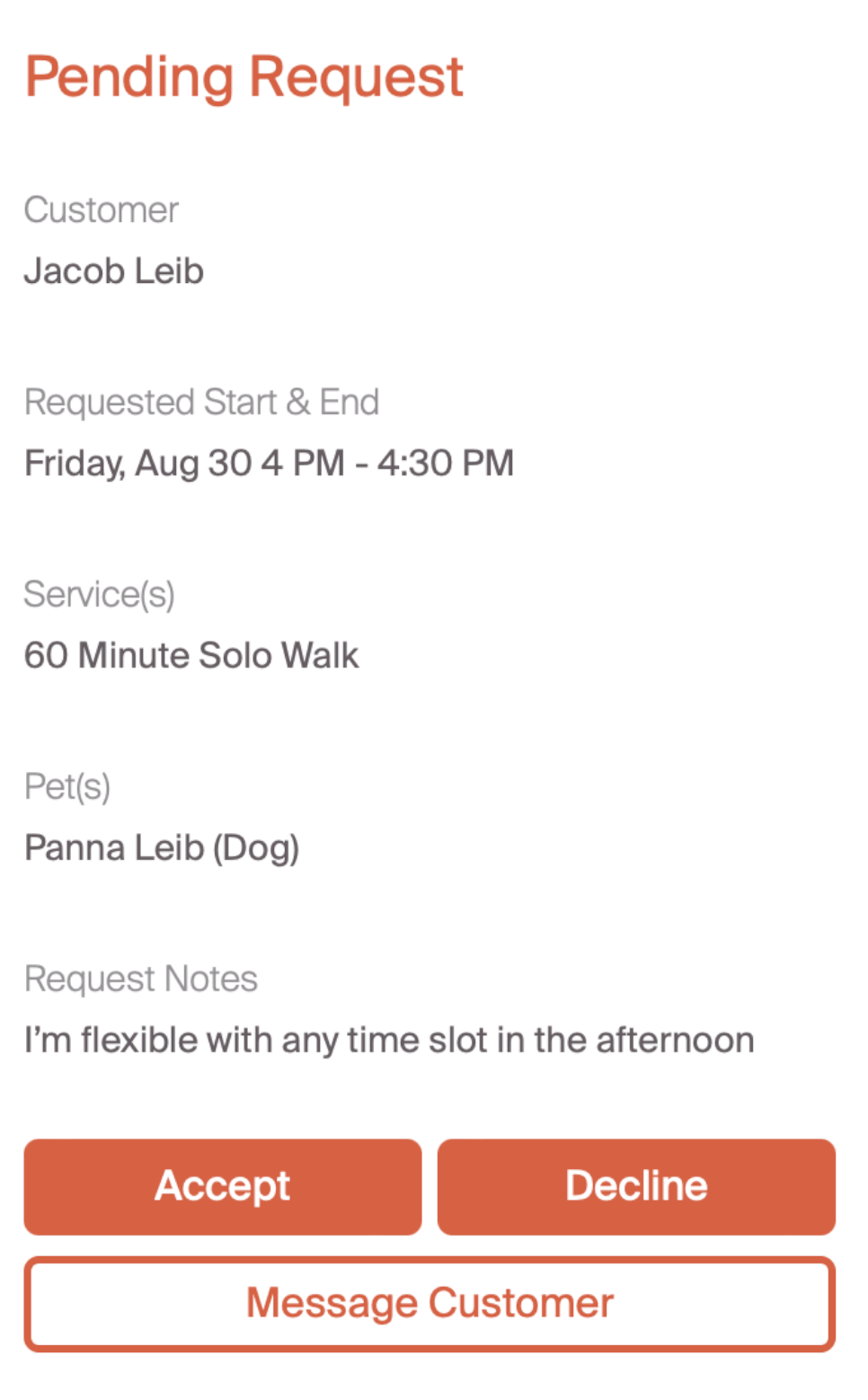
When a professional clicks into the request, there will be additional notes and some options for scheduling. Notes are useful to understand any flexibility in timing, as seen in the example below. The professional can "accept", "decline", or "message" the customer.
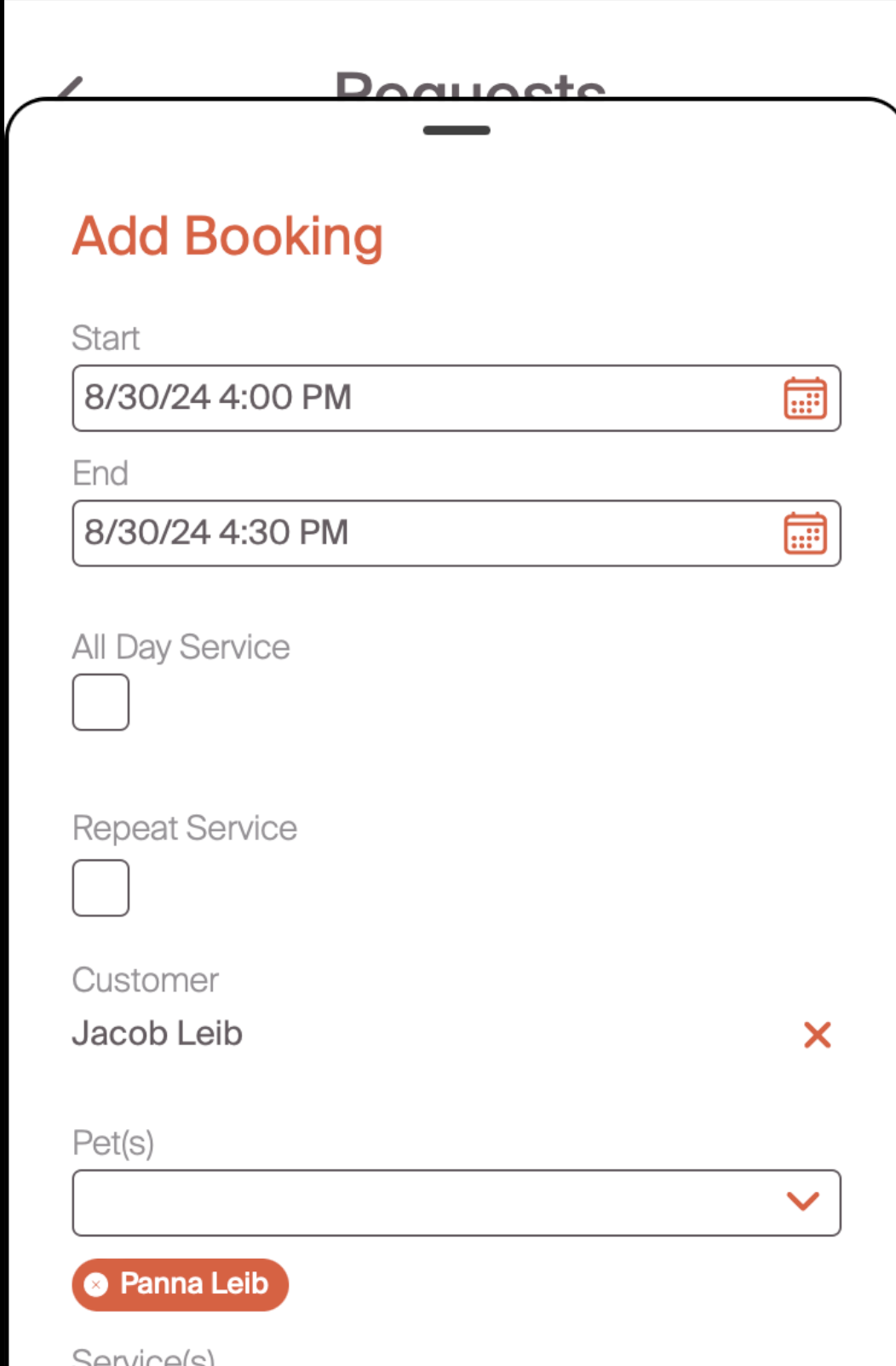
If the professional chooses to accept the booking, it will pre-populate a booking form with the information in the customer's request.
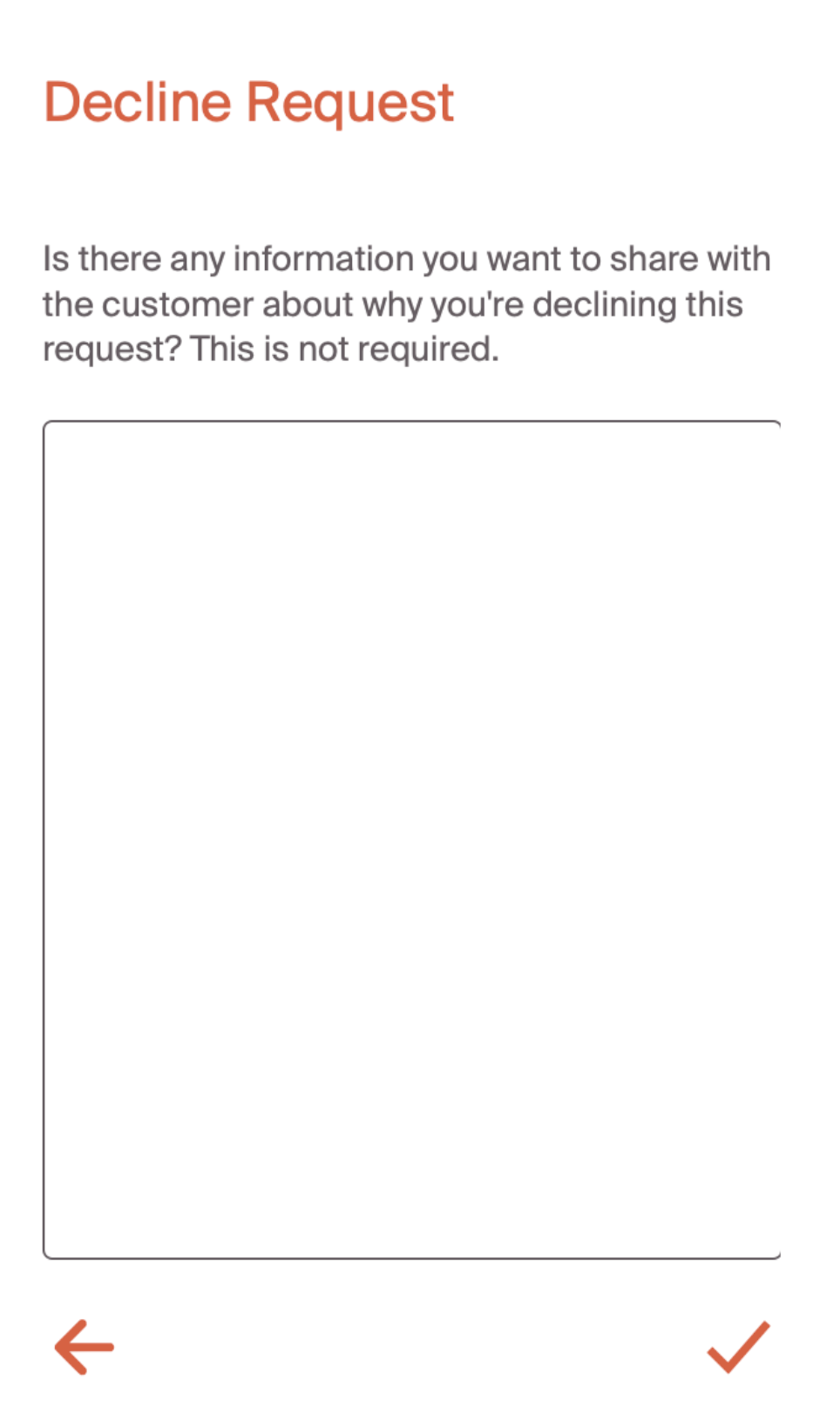
If a professional chooses to decline a request, they're brought to the decline a request screen. There is an option to communicate why this request was declined. This will be sent directly to the customer. We see this done if onboarding hasn't been completed yet, or if there simply isn't availability on the requested day.
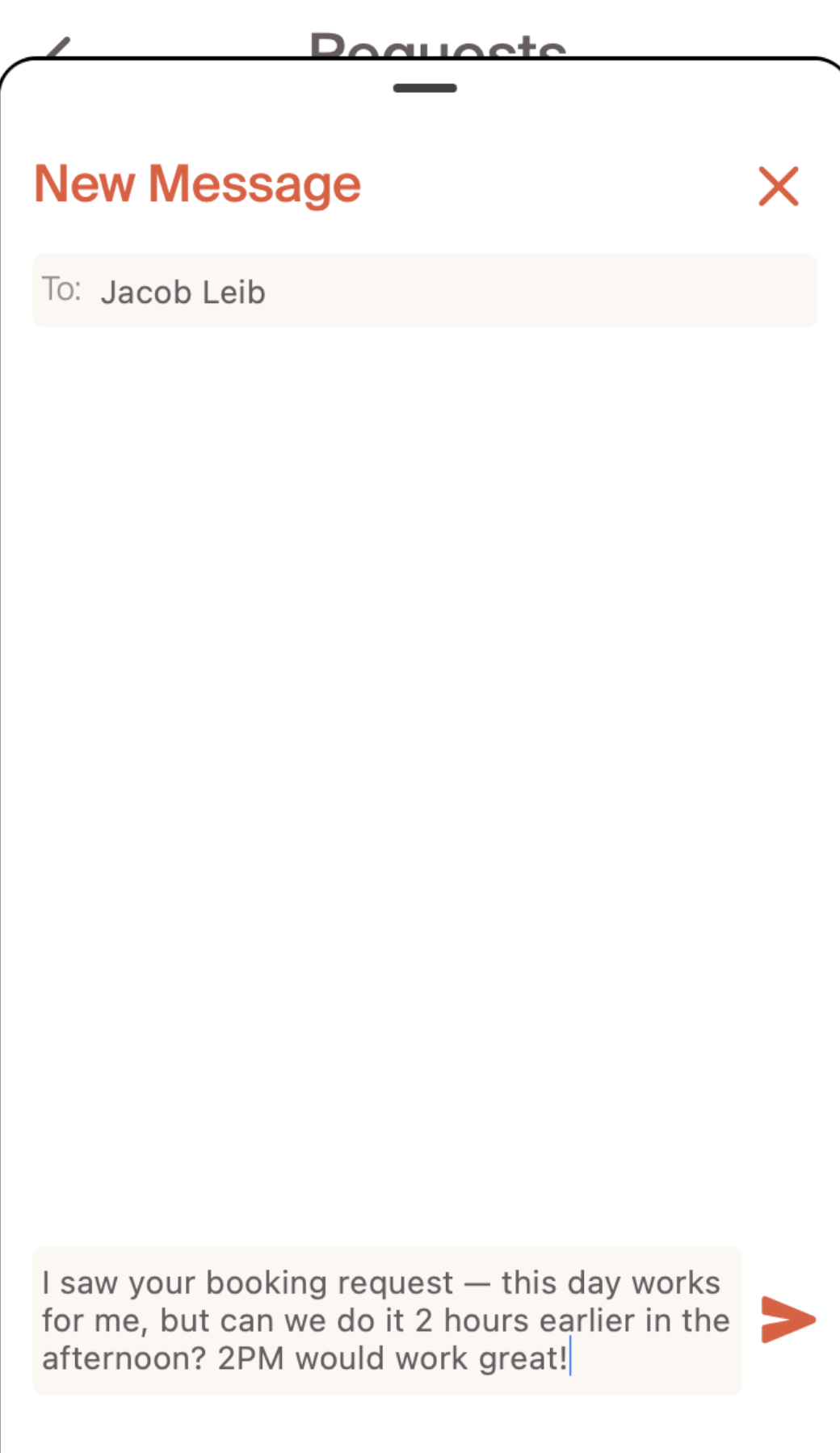
The last option is to directly message the customer. This is a great way to leverage the power of Critter and send a direct, in-app message to adjust the request to book. In the sample below, we show the professional requesting to perform the service a couple hours earlier. If the customer confirms, the professional can go into the request and simply adjust the timing to complete the booking.
After we complete a booking, we can use the service report functionality to communicate success to our customer.