1.6 Other Settings, Show Prices
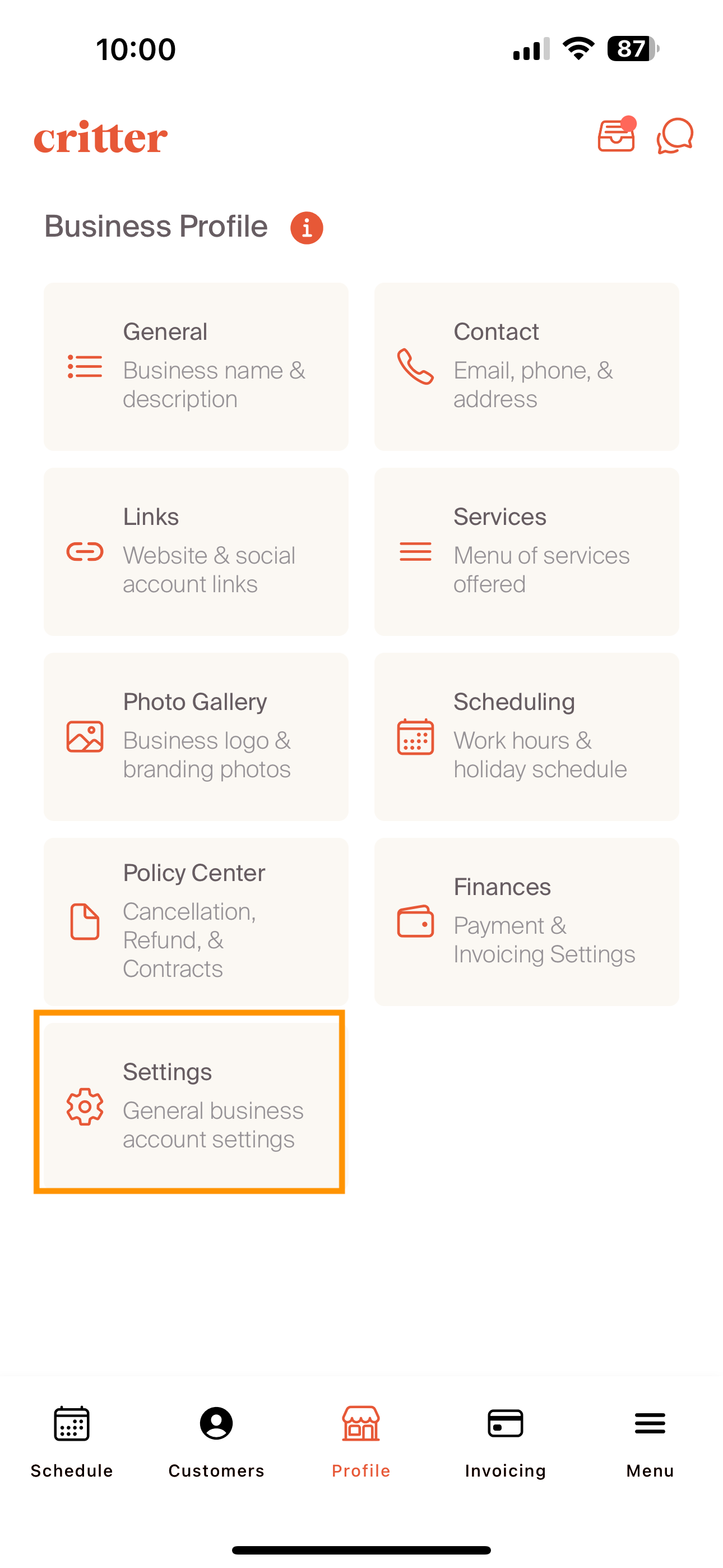
The last step in the process is to choose if we want to share prices with customers. First, navigate to the settings tile
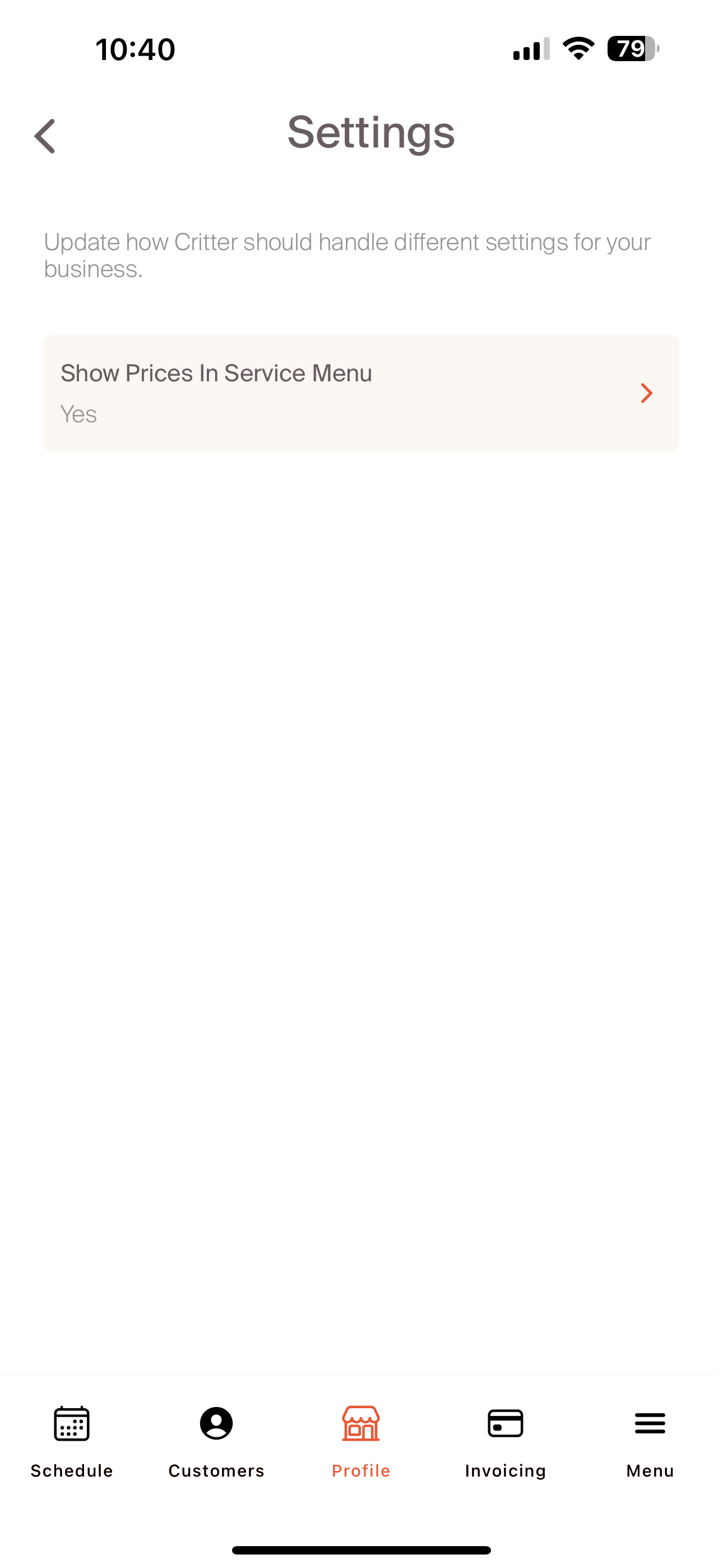
From there, we will select the "show prices in the services menu". This is the only option available currently. As the Critter team rolls out additional functionality, there will be more setting options that appear here in the future
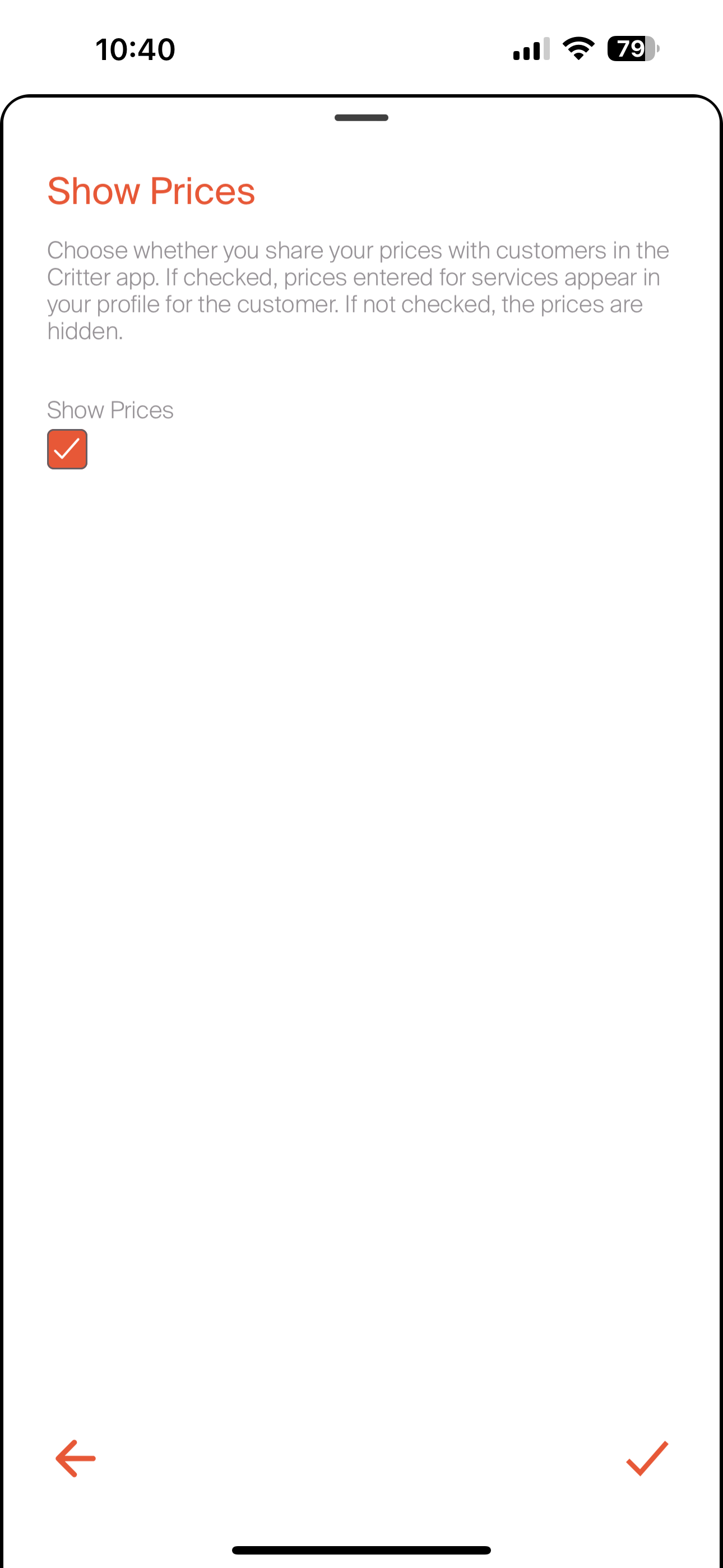
We are prompted with a check box to indicate if we would like to share prices with customers. Checking the box will show prices, while unchecking the box will remove prices.
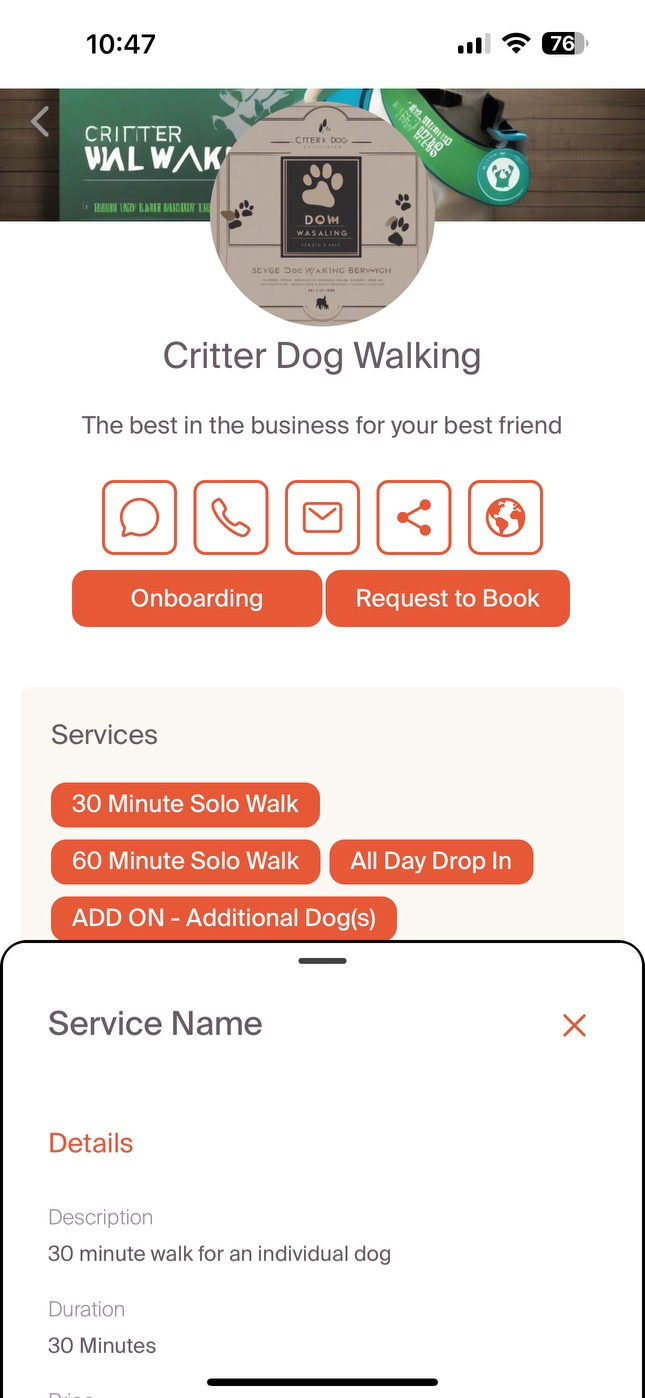
If we do chose to check this box, the professional profile will appear like the sample shown below.
Once the professional profile is complete, move onto the add and manage customers section.