4.4 Accepting Payments
Once an invoice is submitted to a customer, we can manage the invoice based upon our approved payment methods. If we offer only in-app payments, the payment and marking on an invoice complete is automated by the Critter platform. If we accept other forms of payment, professionals will need to manage the outstanding invoices and payment status. Once an invoice is completed, we can see the submitted invoice in our profile.
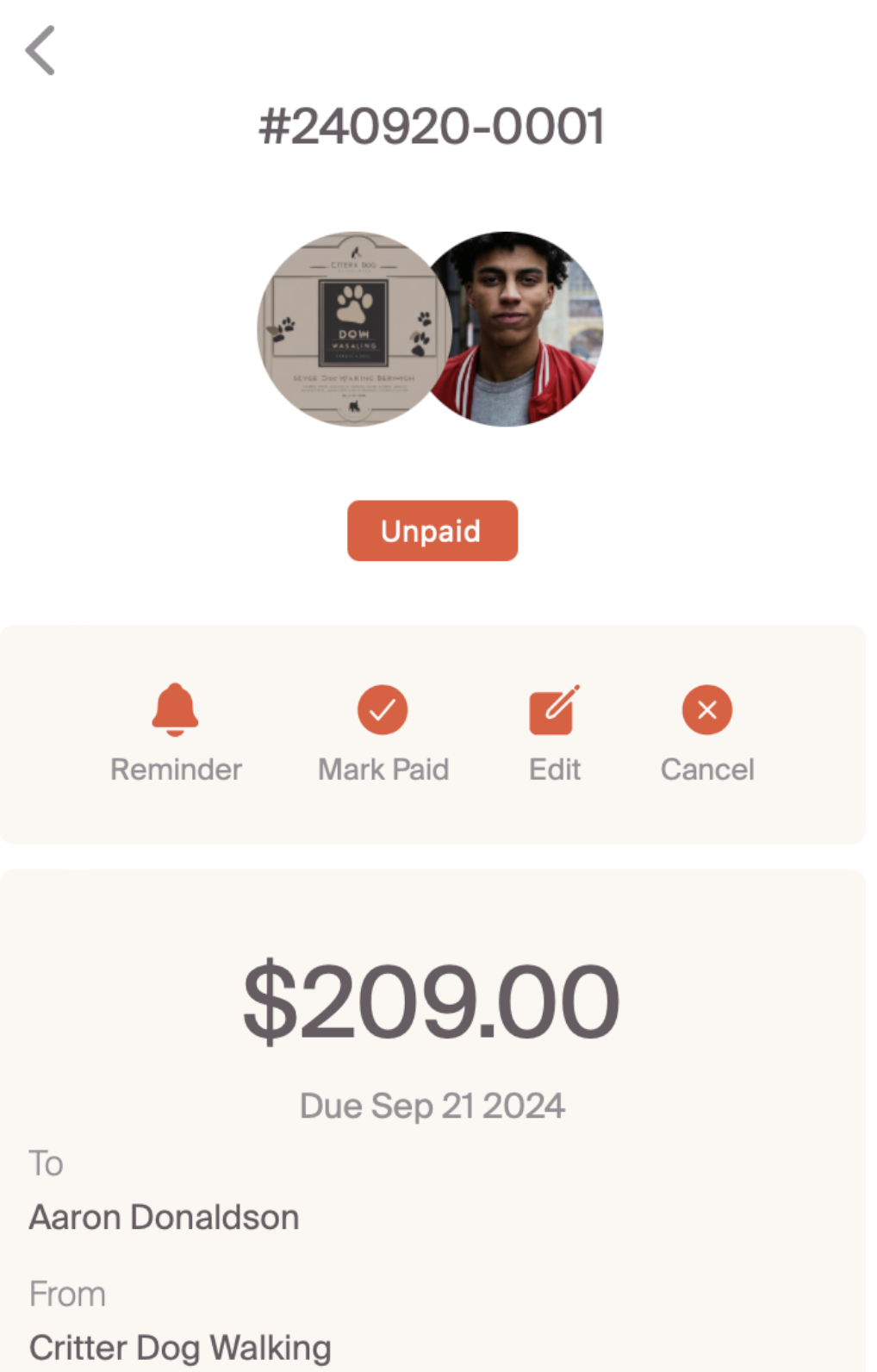
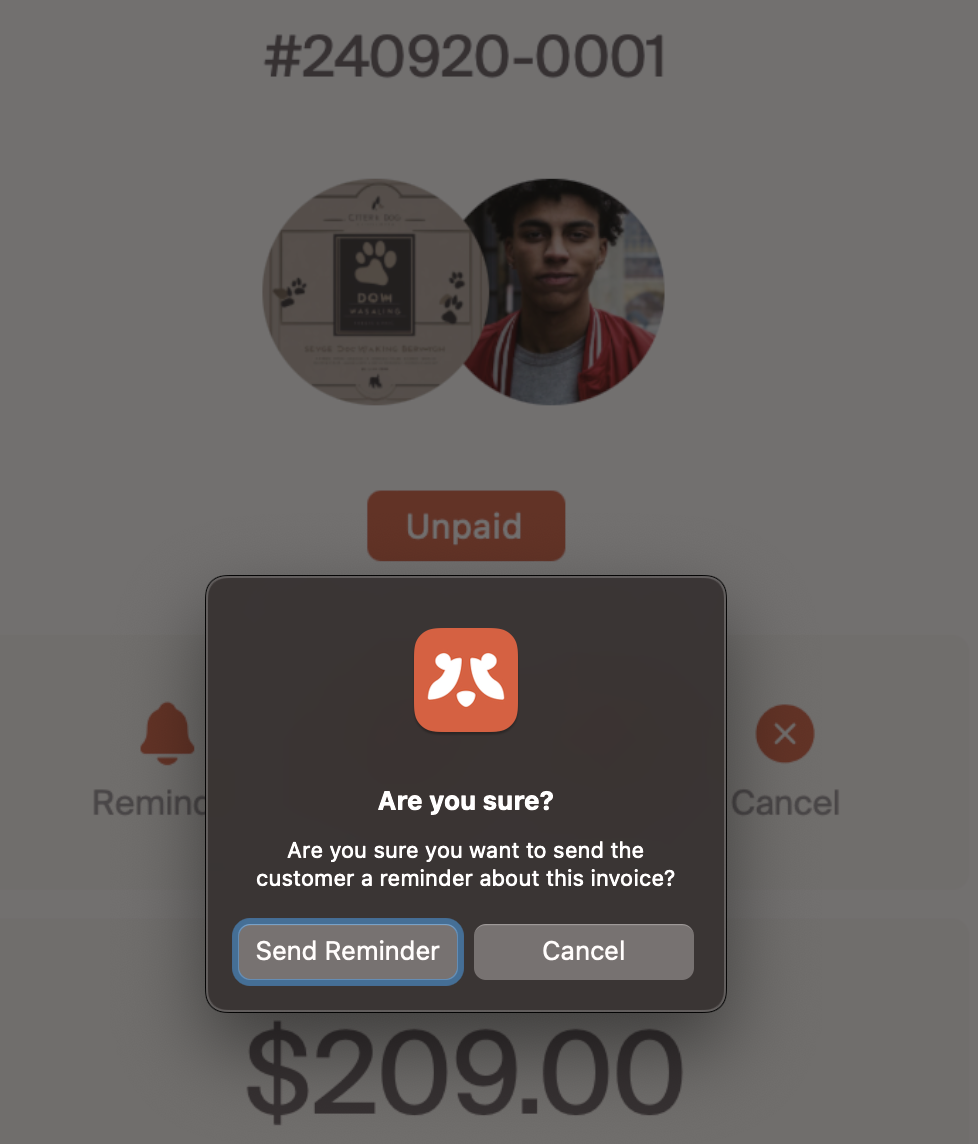
This allows us to have a couple of options. We can remind a customer using the "reminder" icon that a payment is necessary. Selecting the reminder icon will create a pop-up and ask you to confirm a reminder is necessary.
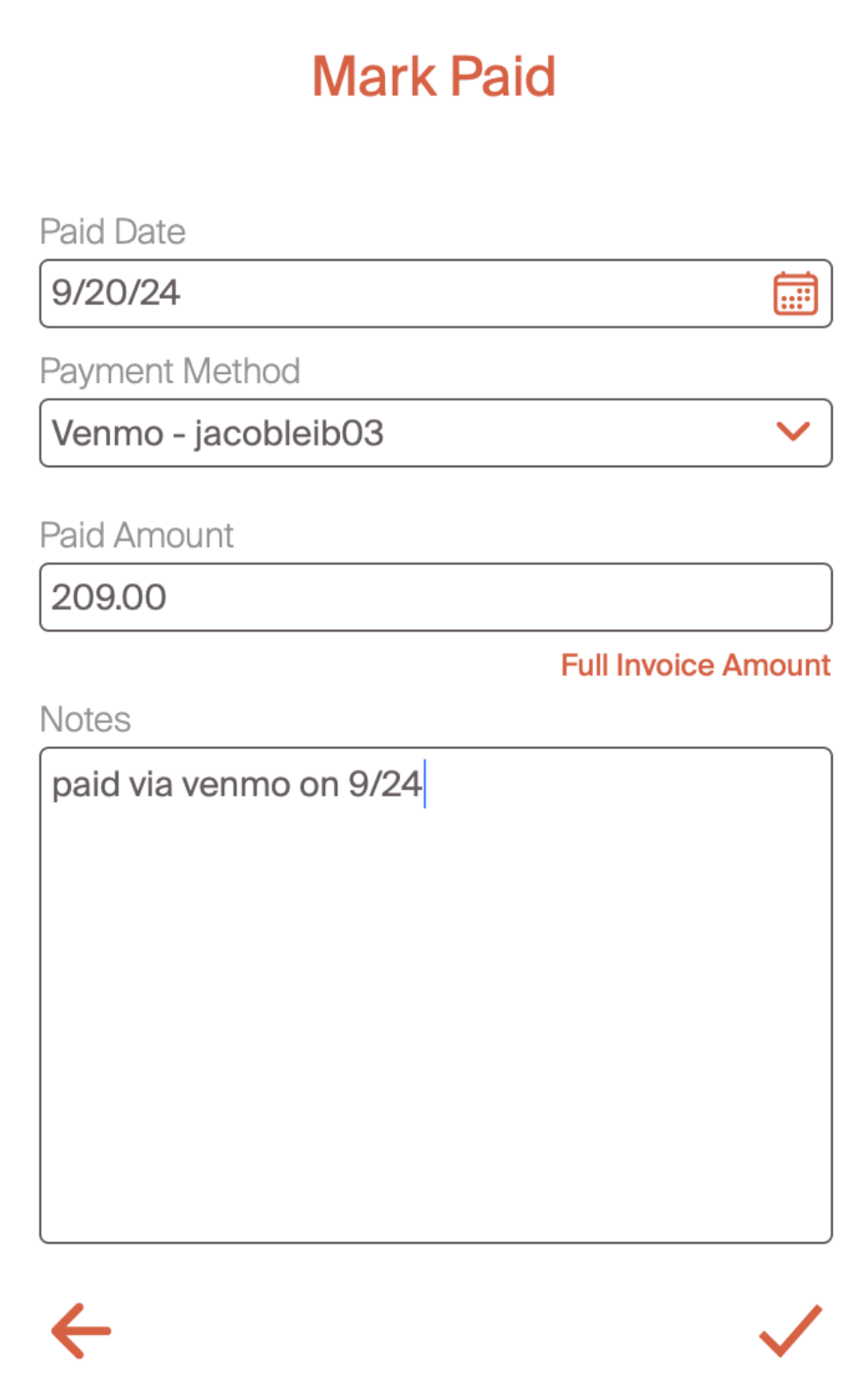
If we do accept an alternate form of payment (cash, venmo, paypal, other) we can mark an invoice as paid. This is important for tracking the status of all invoices. When we mark an invoice as paid, the customer will also see the invoice as paid in their portal. Once an invoice is mark as paid, the status will change to paid. The mark paid button will bring up the mark paid screen shown below. This allows the section of the date it was paid, the payment method, amount paid, and any notes. Selecting the "full invoice amount" text will auto-populate the paid amount to be equivalent to the total value of the invoice.
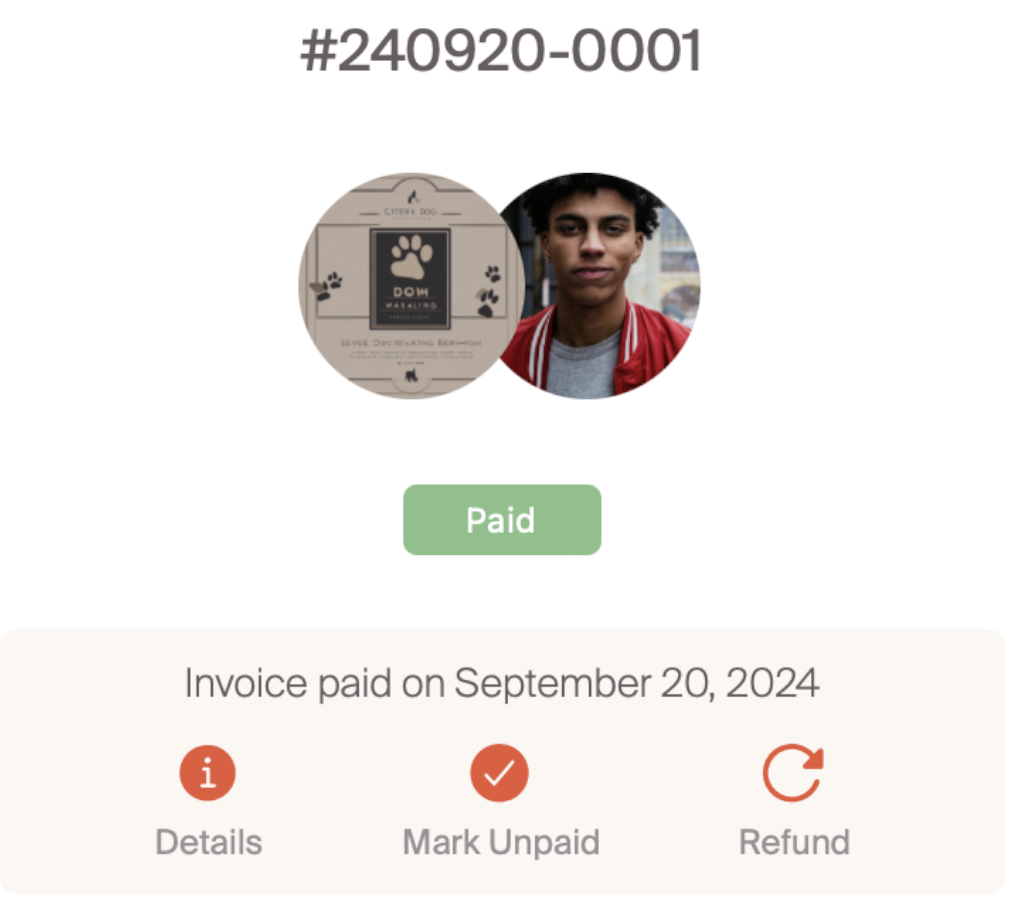
A completed invoice will change to a "paid" status on the home screen. This includes options to refund or mark unpaid if there are any changes.
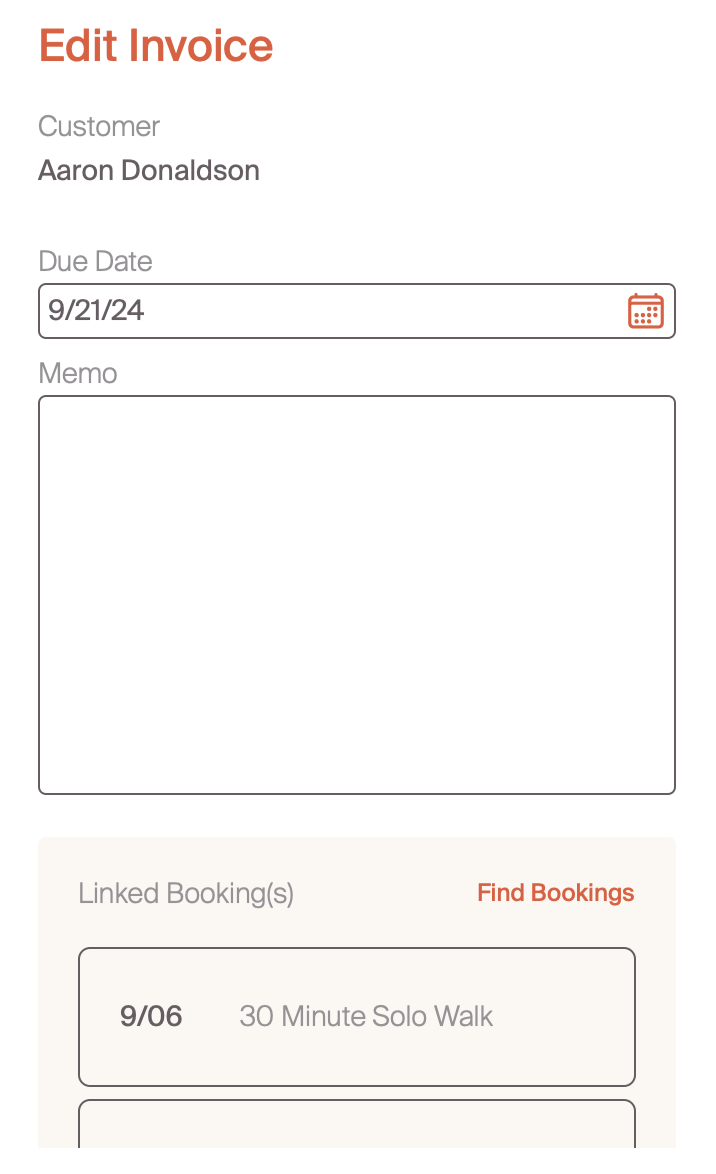
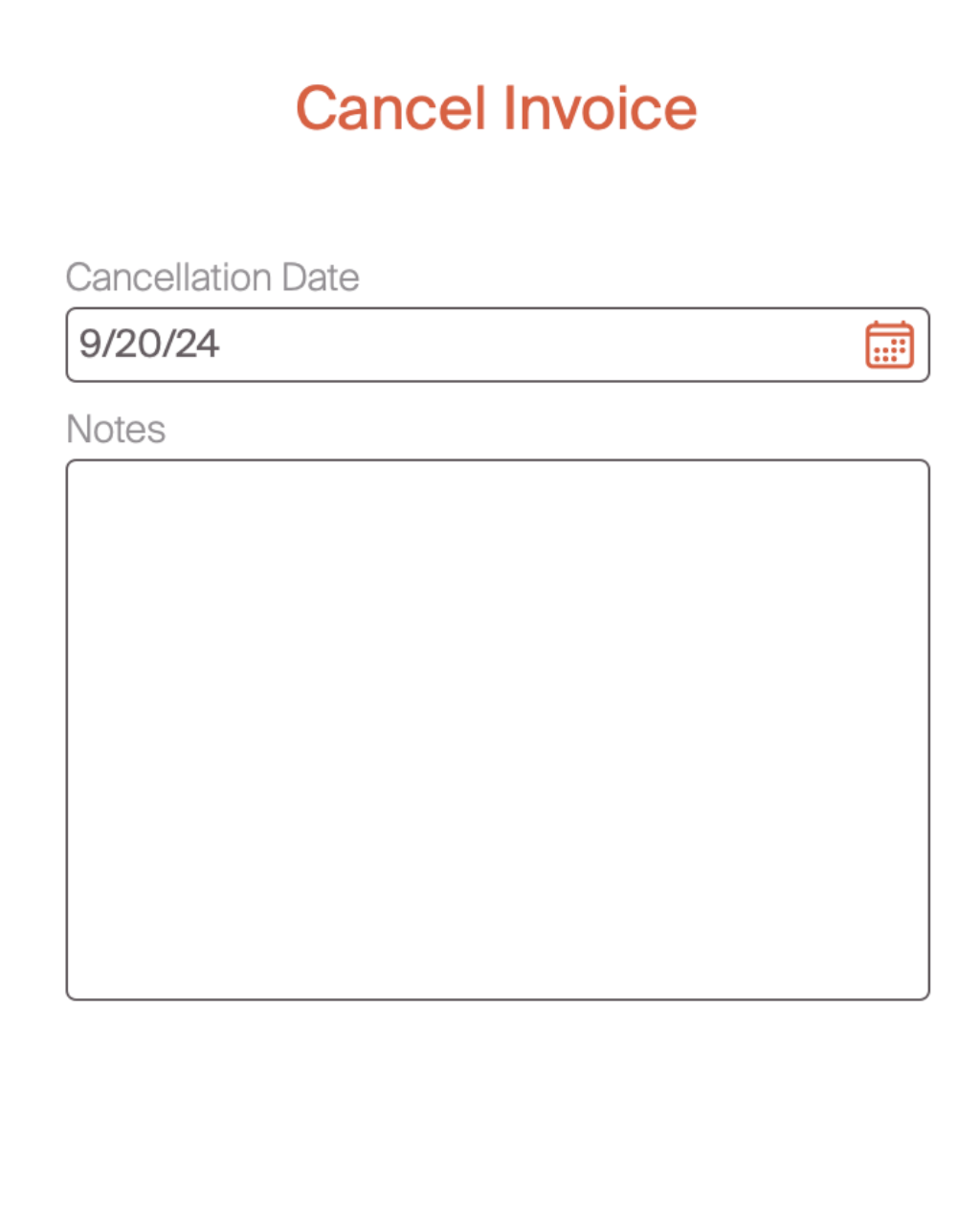
Prior to accepting payment, professionals have the opportunity to edit an invoice or cancel. Editing will allow for any adjustments to the invoice and will follow the steps in the creating an invoice tab. Cancelling an invoice will remove it from a customers invoice list.
Now that we know how to accept payment, let's understand what the customer experience will look like to receive invoices and submit payment.