4.5 Customer experience when receiving an invoice and submitting payment
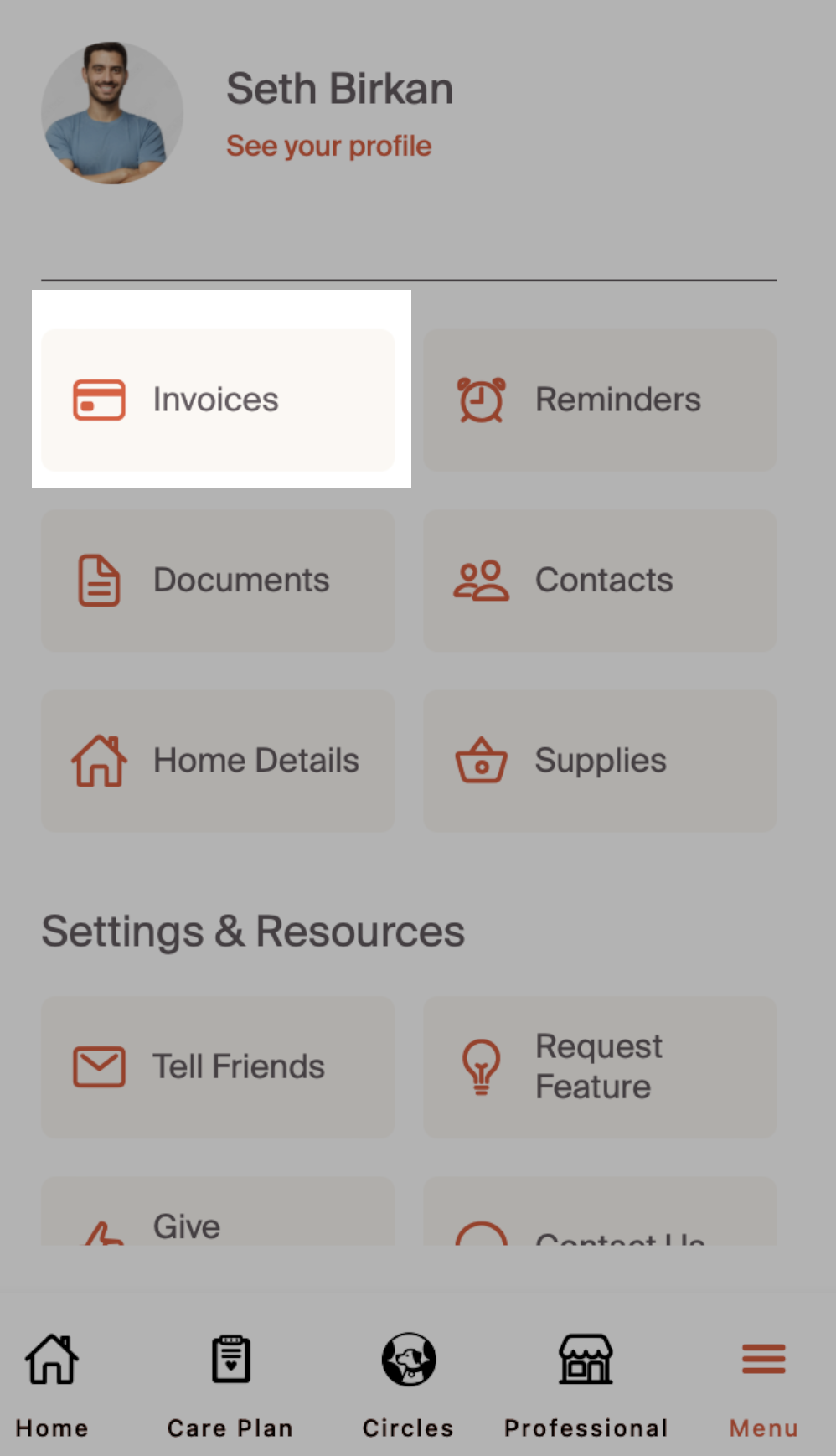
Invoicing starts on the professional side of the Critter Platform, but will be completed on the customer side. Customers will have an invoice home where they can review all invoices, past and present, as well as submit in-app payment. Future sections will cover the full customer experience. When customers login, they will navigate to the menu tab and select invoices.
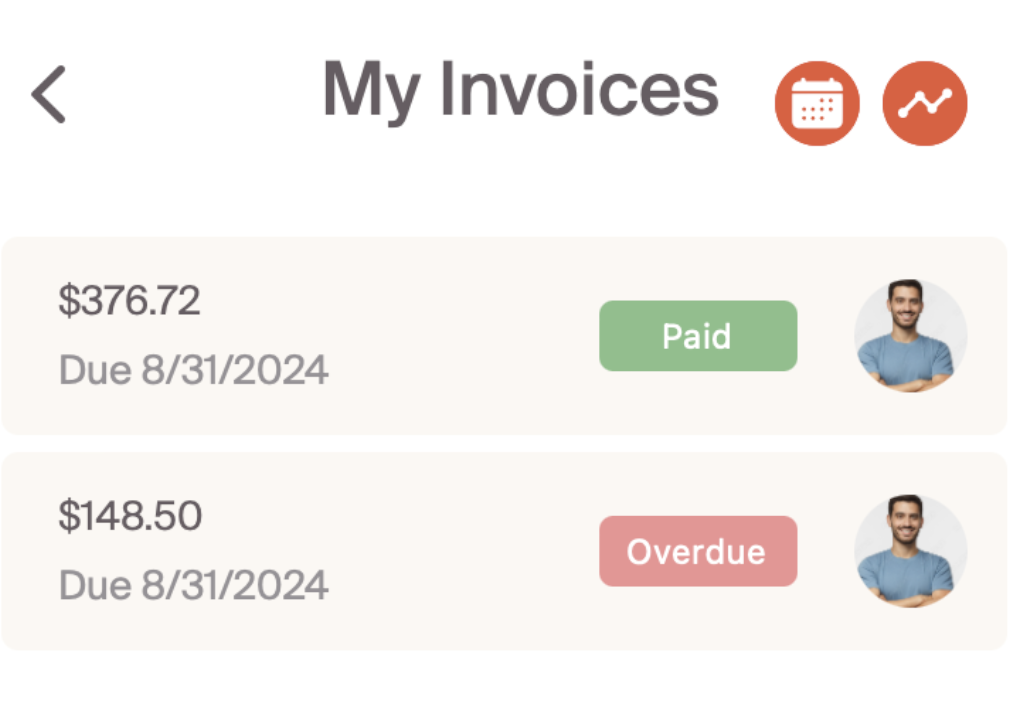
On the invoice tab, they will see a full list of invoices. These invoices will be for all professionals that they interact with on critter. Similar to the professional experience, they have the opportunity to filter by calendar date and status.
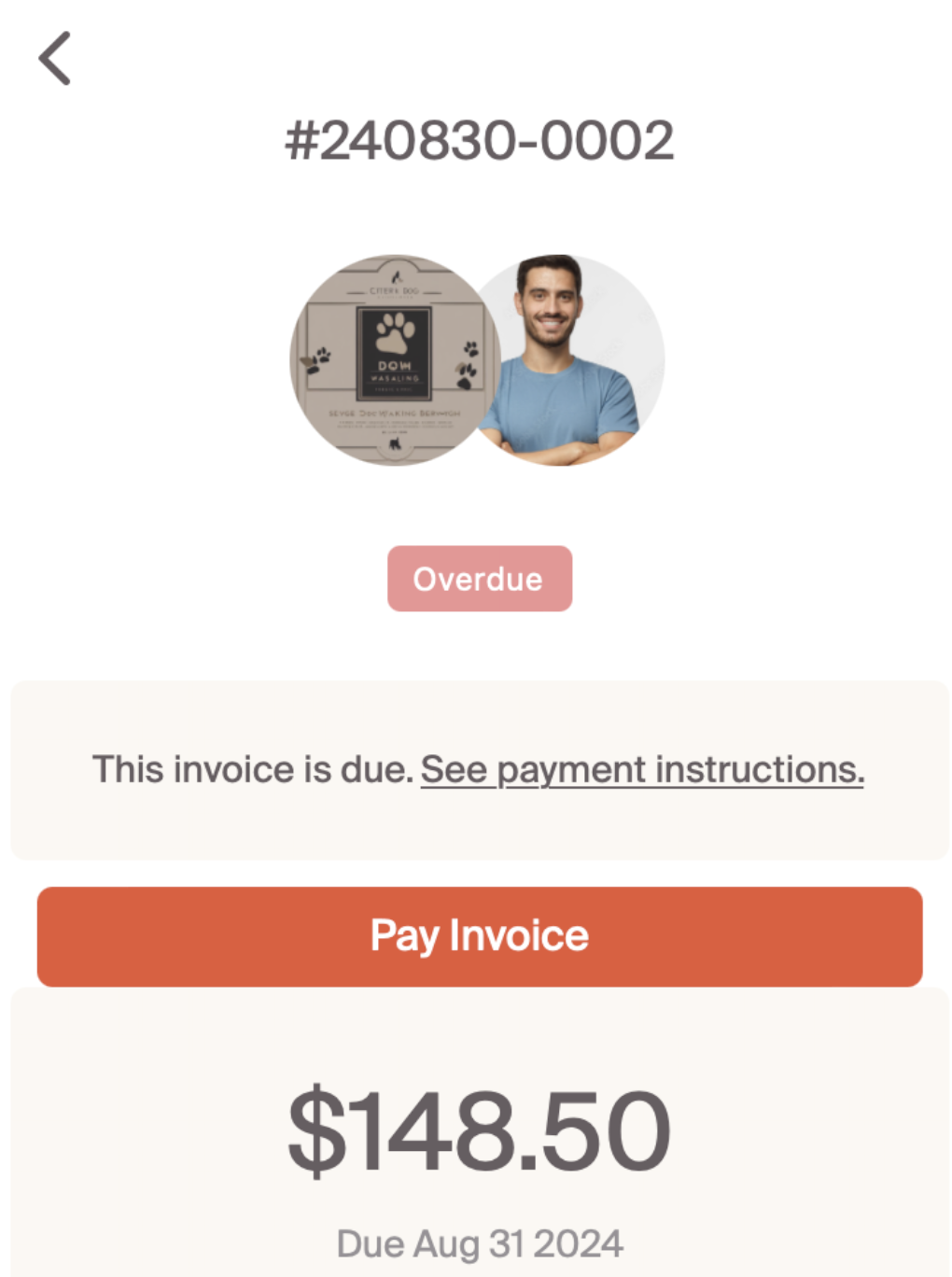
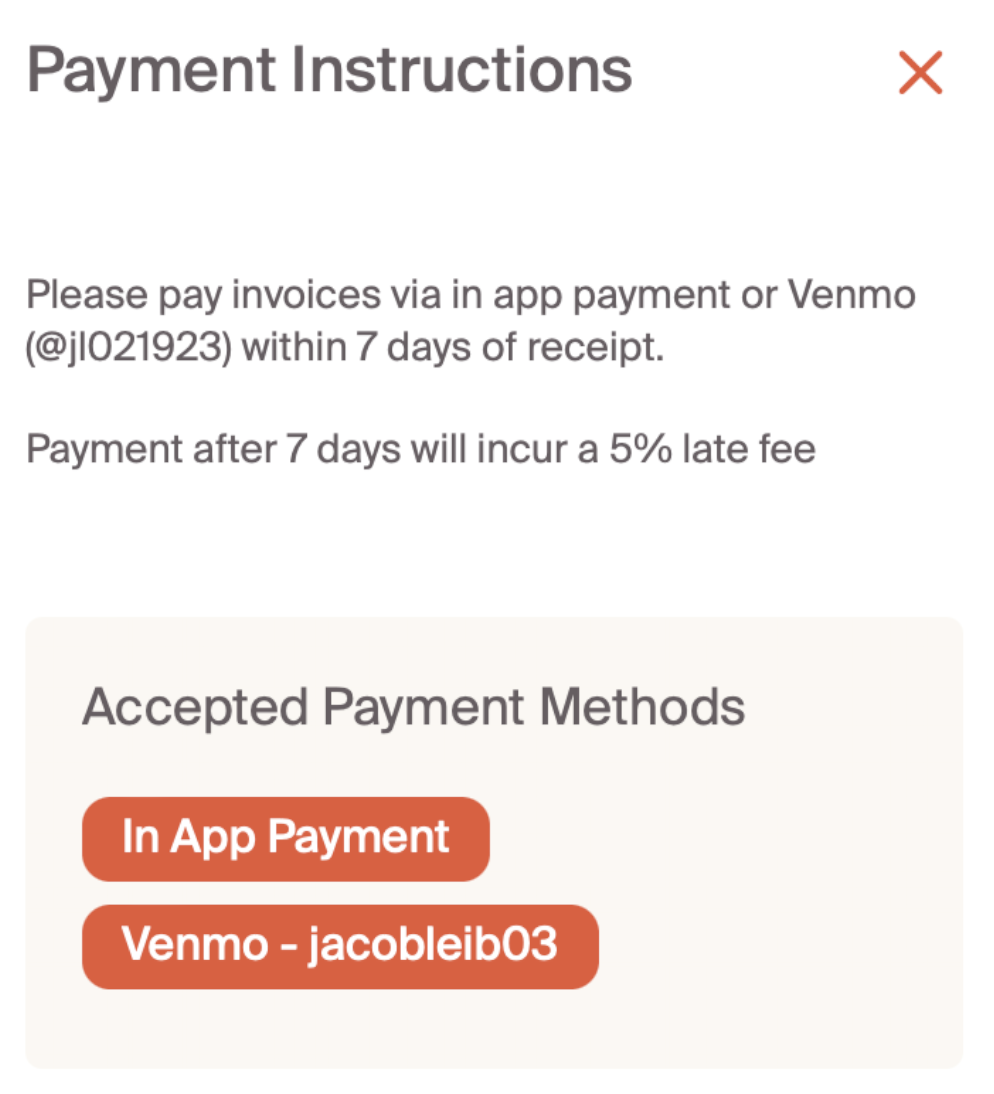
Clicking into an unpaid invoice, we can see that customers will be prompted with a notice that this invoice is due and provide a link to invoicing instructions. We also see who it is from and the amount. Clicking into the 'see payment instructions' link will allow us to understand how we provide payment.
Customers will see payment instructions that professionals have set-up previously in the 'Finance' section of the professional profile set-up. This includes any invoicing terms, as well as payments accepted.
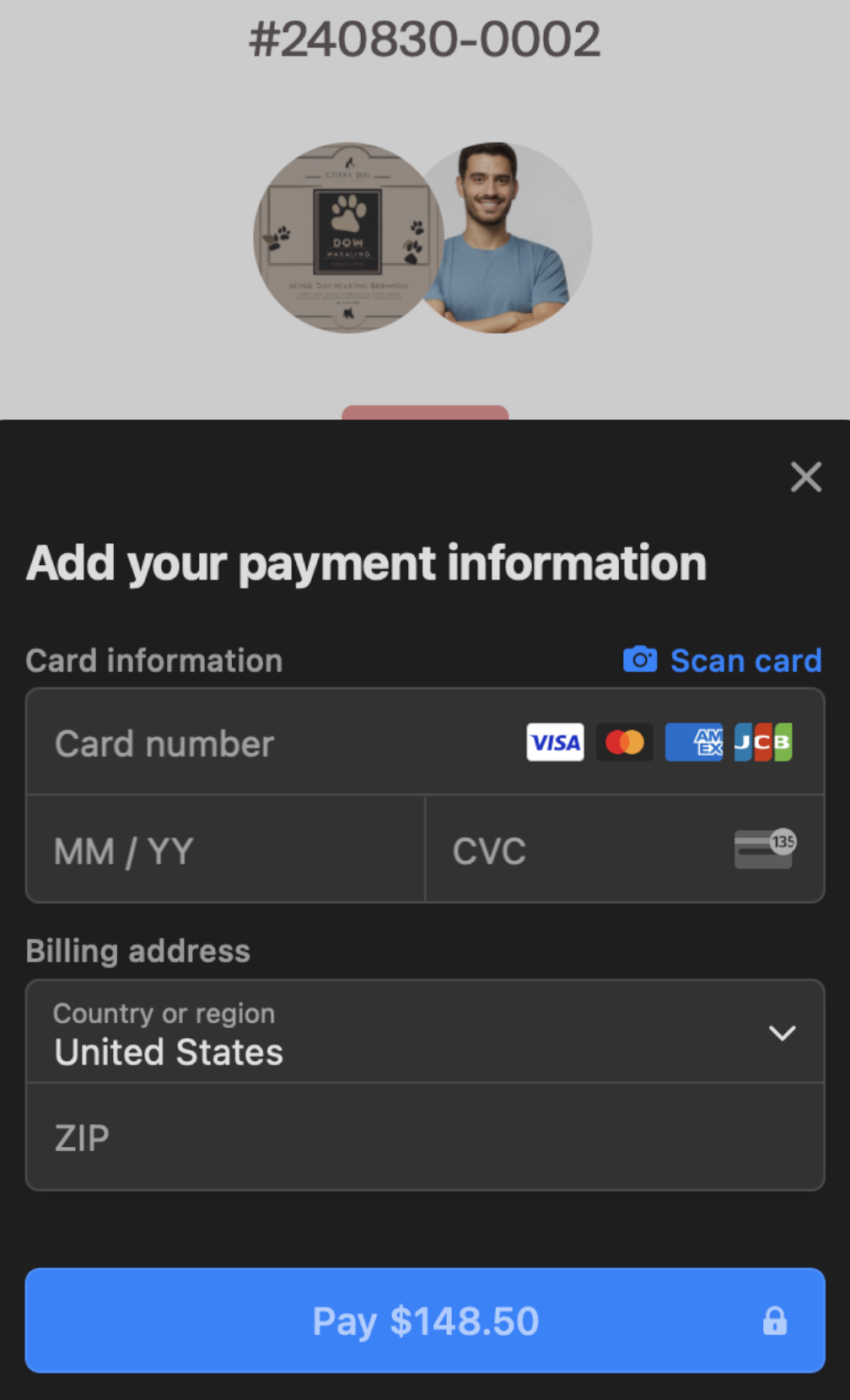
If in-app payment is enabled, the customer will be able to select "pay invoice" on the invoice. This will bring up the below screen to input credit card information.