3.5 Updating Service Report and Posting to Customer Timeline
Updating a service report is a great way to communicate how a service went to a customer. Service reports are found in created booking. Scroll to the bottom of the booking, under all the relevant information and you will see "update service report"
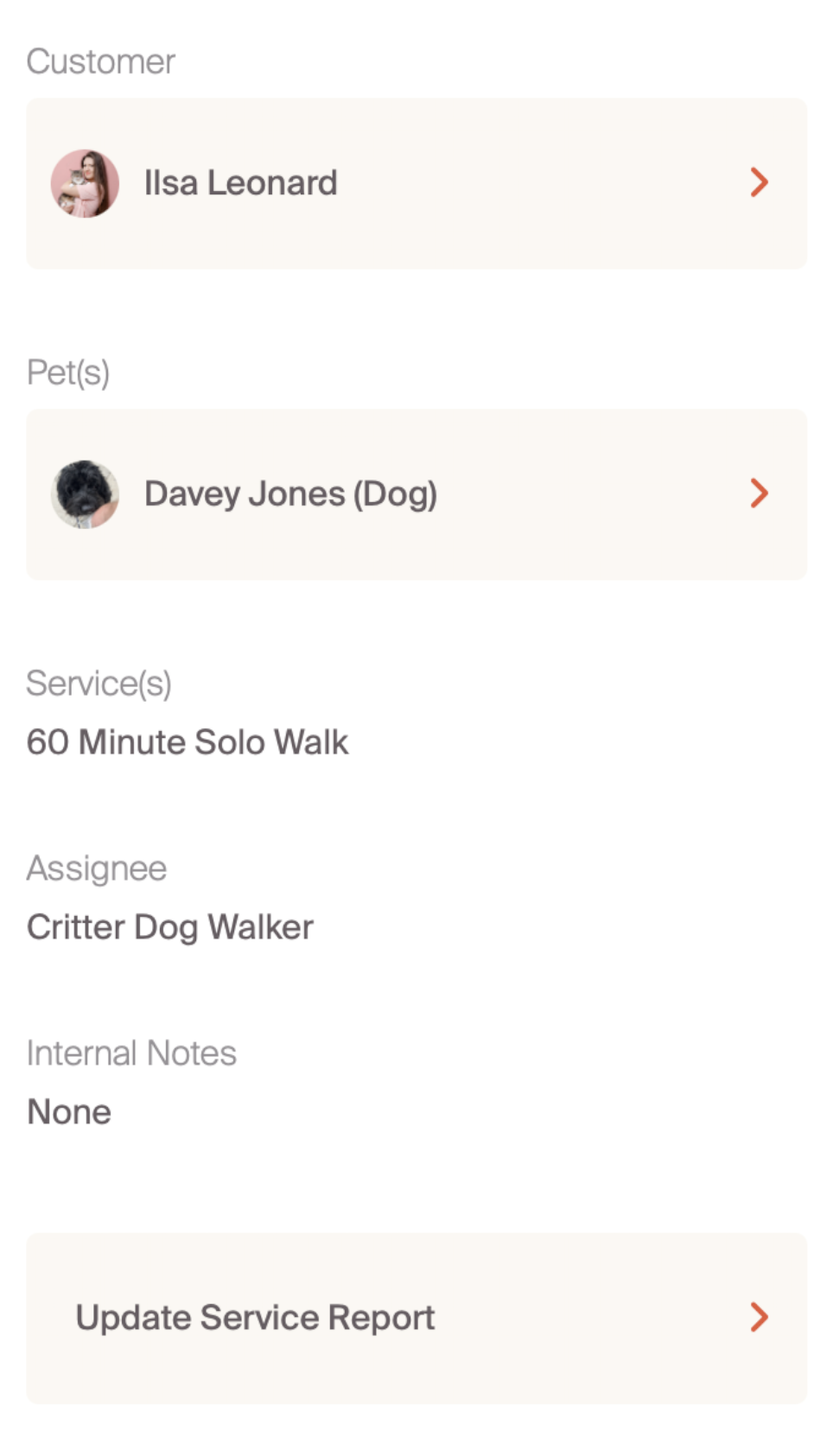
When you click on "update service report", the services listed on the booking will appear. If there are more than one service, all of these services will appear. This might be an all-day dog sitting with multiple walks, or a boarding/training session.
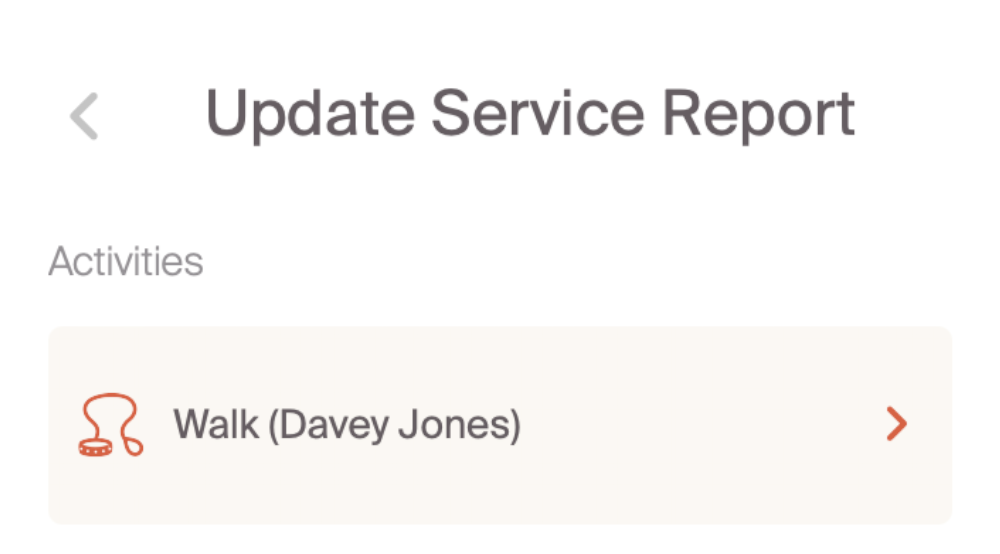
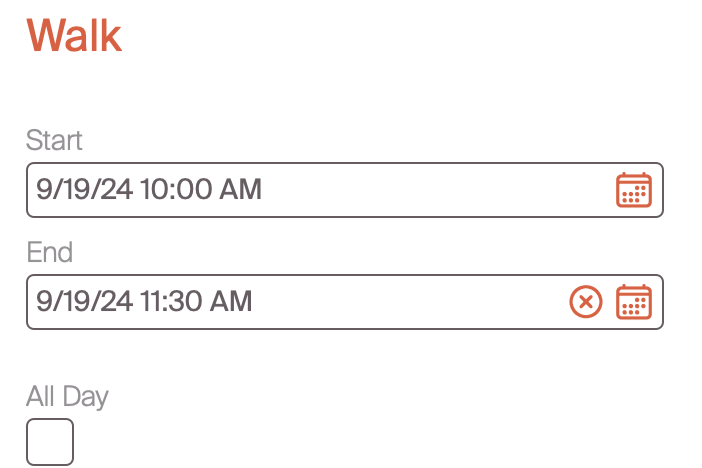
The top section of the service report will be auto-populated based on the information in the booking. Professionals have the opportunity to update this if they so choose. If you use block scheduling, this is a good opportunity to include the actual start and end time of a service.
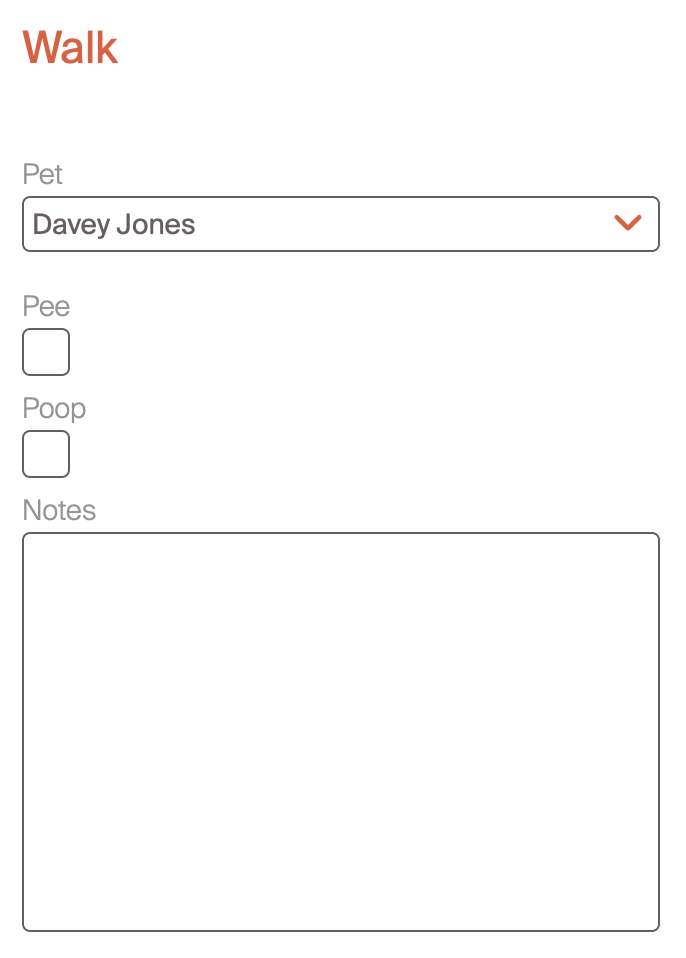
As you scroll down, you are prompted to select the pet that the service report is for. This is relevant is there were multiple pets associated with the service. Additionally, based on the service type you can provide additional information for the pet owner. In the example below, the service type is walk. For walks, there is a default option to indicate if the pet went pee or poop during the walk. Additionally, you can include any other notes that might be helpful for the pet owner.
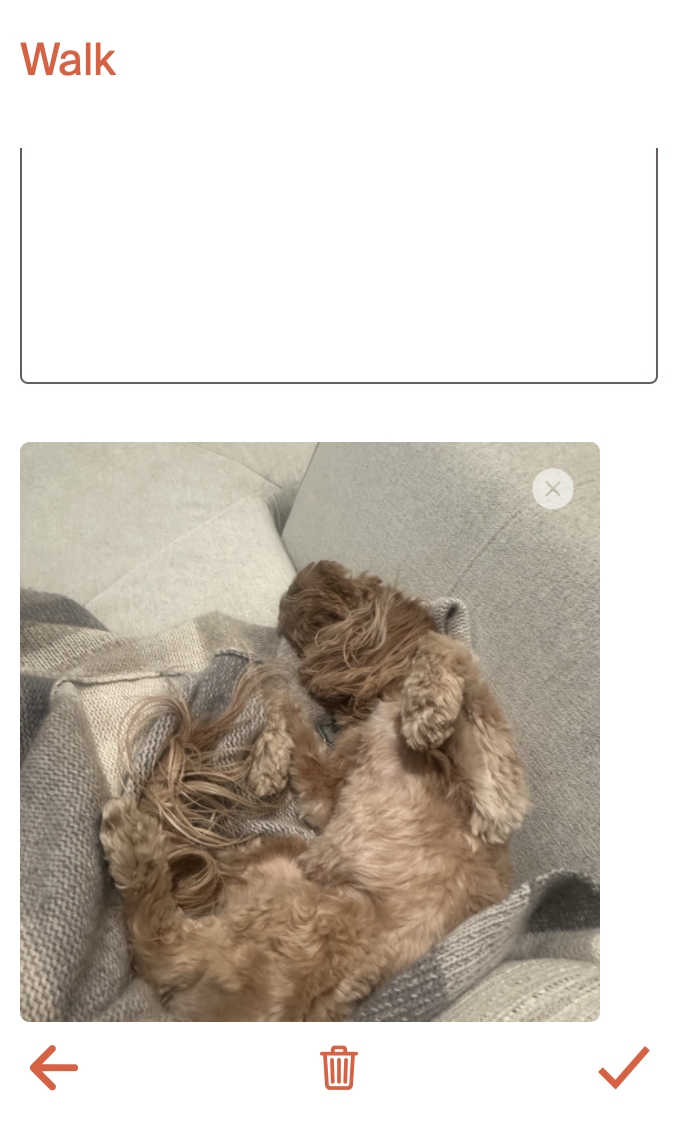
The last step is to include a picture or video if you chose to. When the service report is complete select the check mark in the bottom right hand corner. This will post to your customers timeline.
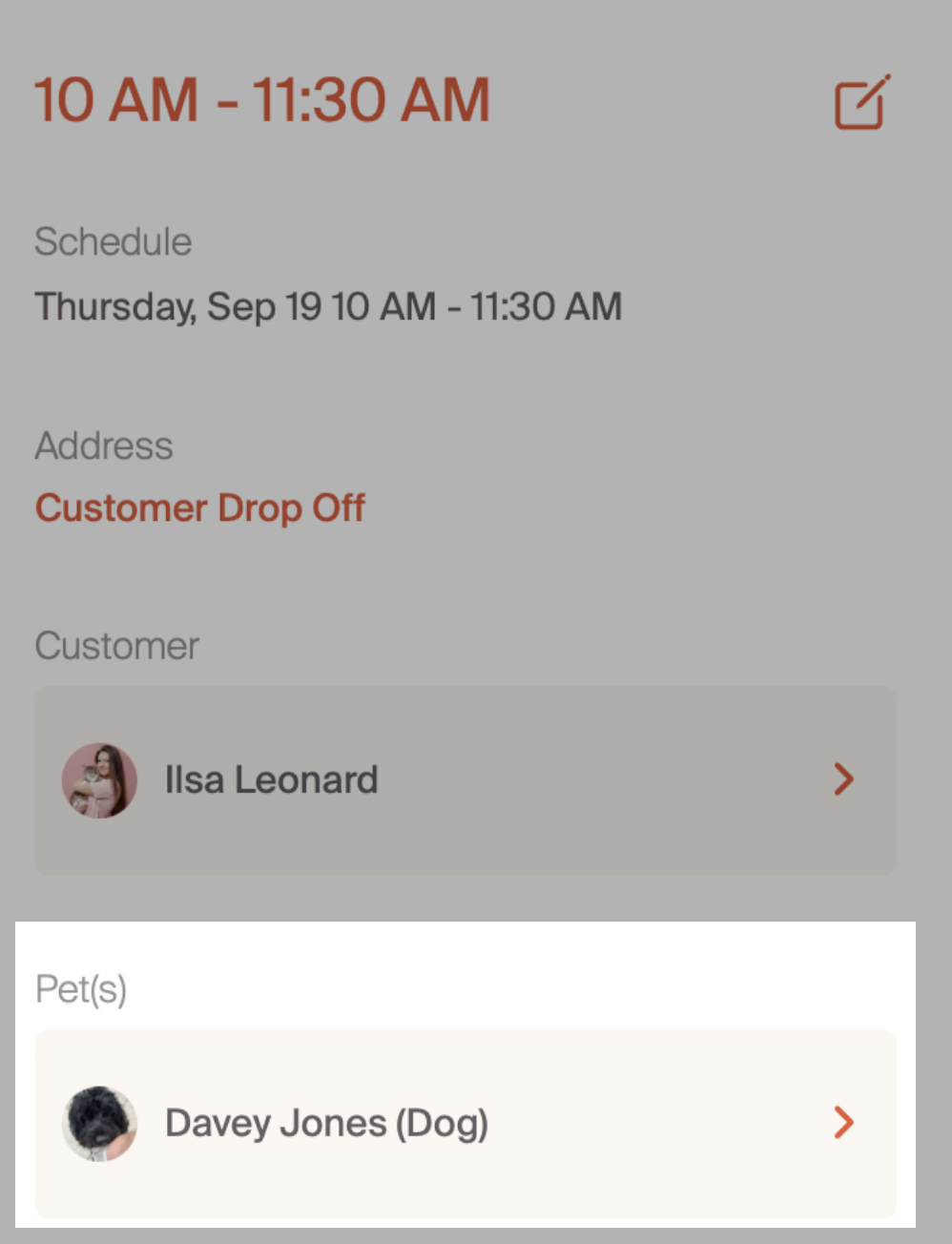
If we want to review the service report, we can navigate to our customers timeline. If we go back to the booking, we navigate to the pet profile. From the pet profile, we will select the
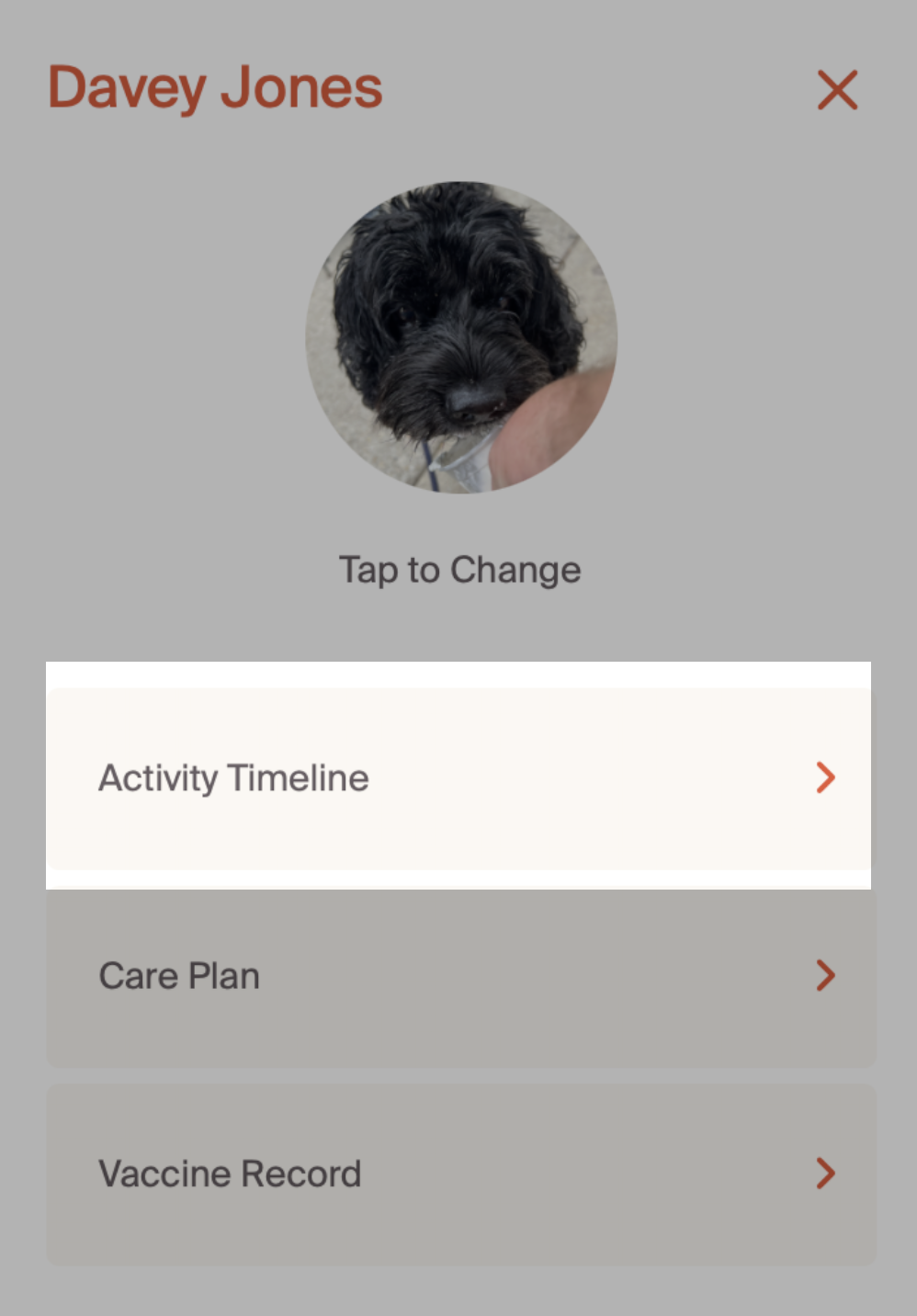
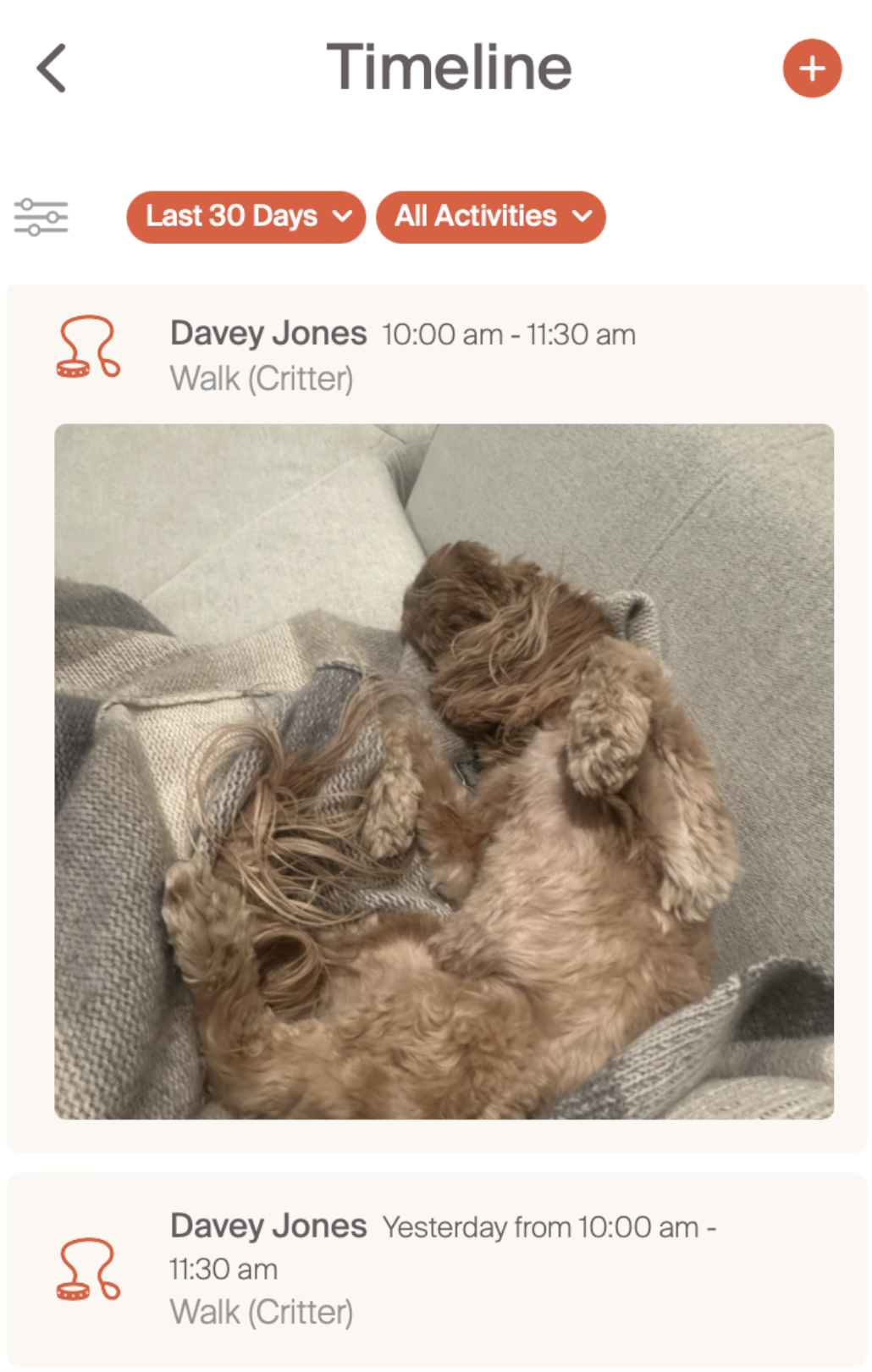
On the activity timeline, we can see the service report as well as any other timeline postings for the specific pet. We will go further into the timeline, careplan, and other pet owner experiences during the pet owner tutorial.
The last step in the process is streamlining our communication with customer by interacting directly from the booking page.